

EasyFlow lets your shoppers change the product options they picked without leaving the cart. With Edit options in cart, they can update a size, swap an add-on or fix a typo in a custom field right from the cart page or cart drawer, instead of removing the item and adding it again.
In this guide, you will learn how to enable and set up this feature step by step.
How to Enable Edit Options in Cart in Shopify with EasyFlow? #
You can set up Edit options in cart in a few simple steps. Follow them to get it working on your store.
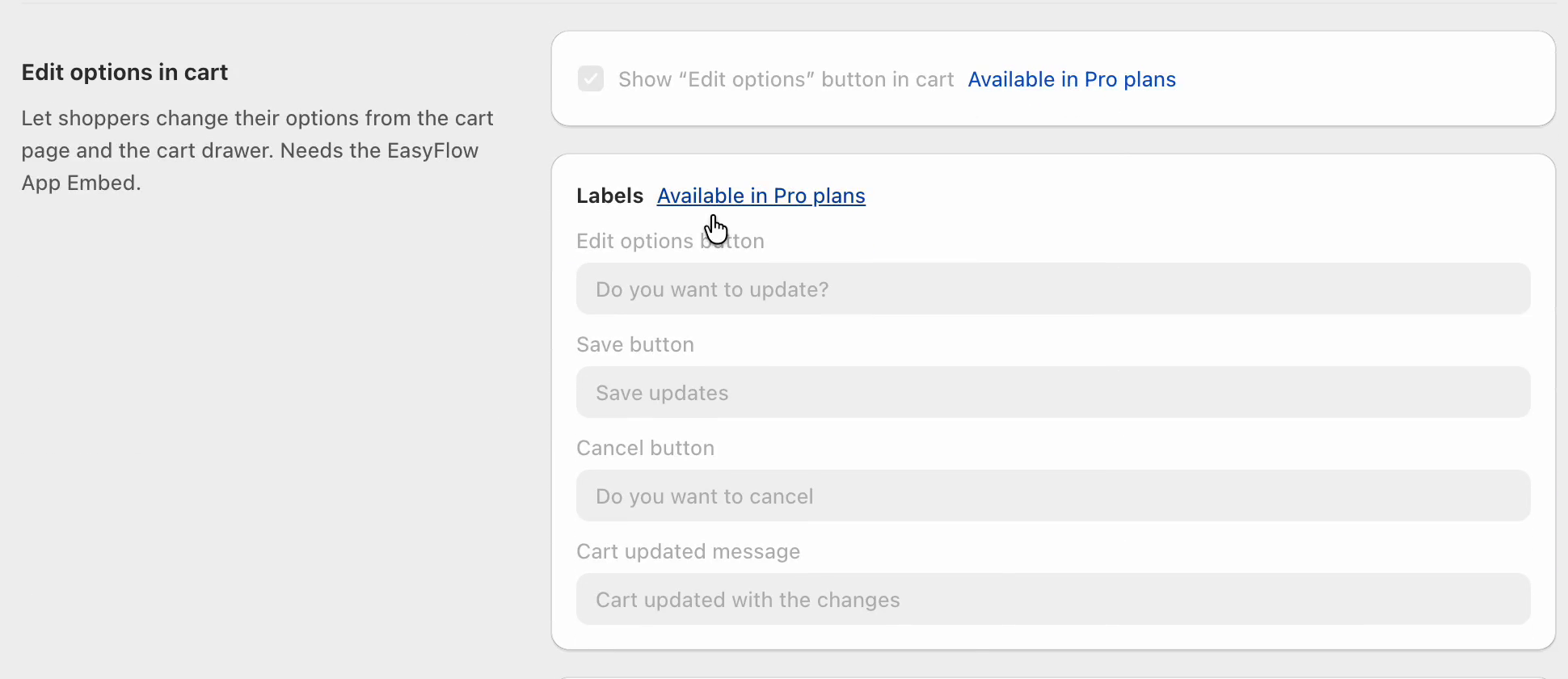
Note: Edit options in cart is a Pro feature. On the Free plan, the setting is locked and marked as Available in Pro plans. To unlock it, upgrade to any paid EasyFlow plan (Growth, Scale or Enterprise).
See How to Upgrade the EasyFlow Plan for help.
Step 1: Enable the EasyFlow App Embed #
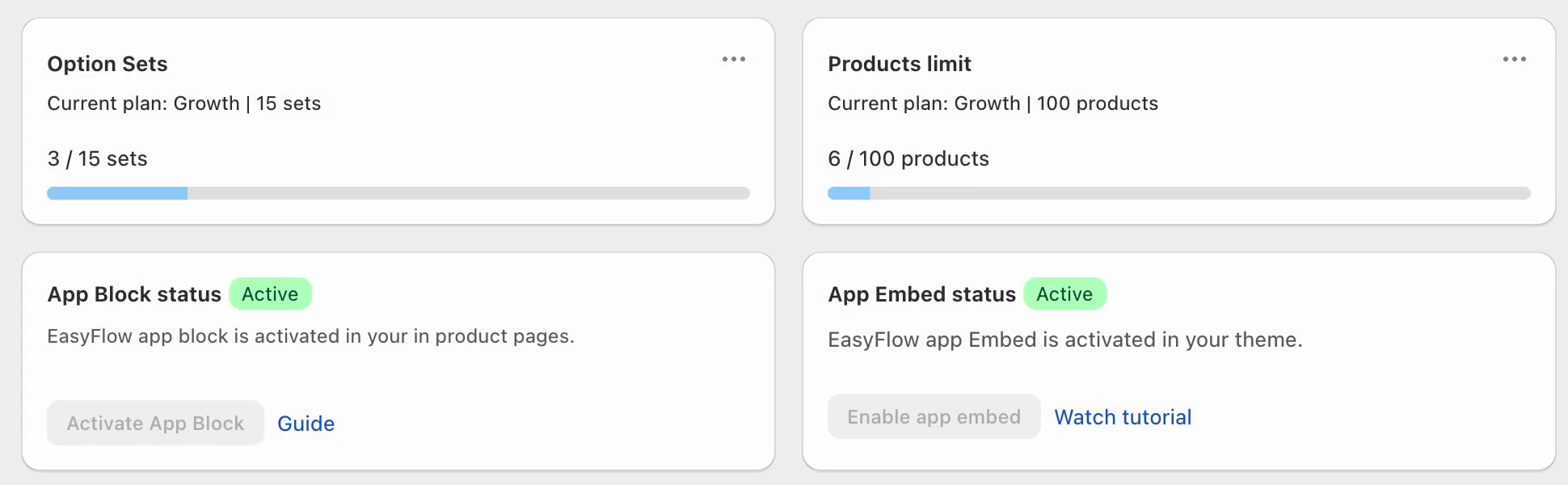
Edit options in cart needs the EasyFlow App Embed to work. Go to Online Store → Themes → Customize, open App embeds from the left panel, toggle on EasyFlow and click Save. Follow this guide if you need help.
Once it is on, the EasyFlow dashboard shows App Embed status: Active.
Step 2: Assign an Option Set to Your Product #
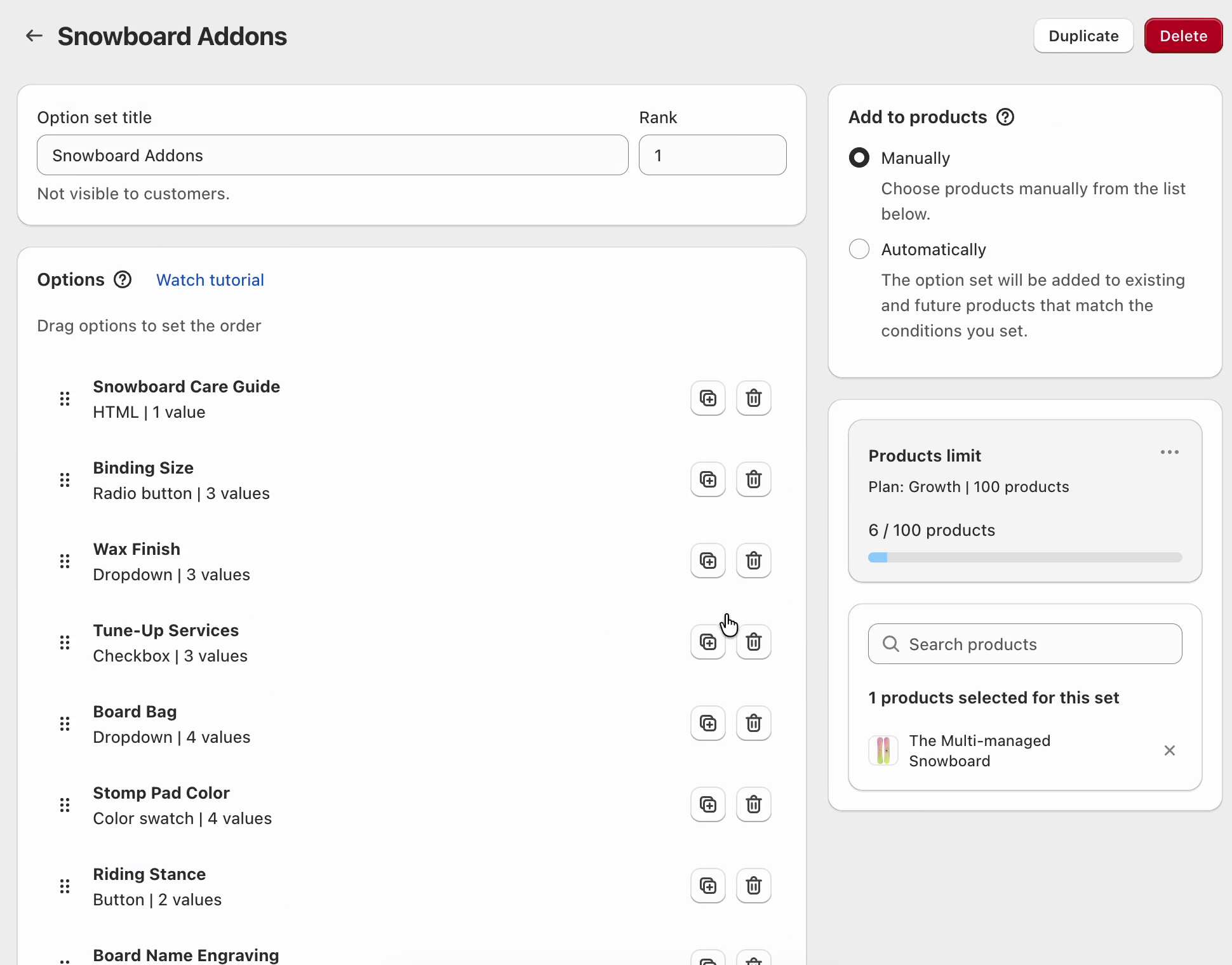
Shoppers can only edit options that come from an EasyFlow option set. From the EasyFlow dashboard, open the option set you want to use, or create a new one with Create option set. Under Add to products, choose Manually and pick your products, or choose Automatically to add the set to products that match your conditions.
In this example, the Snowboard Addons option set is assigned to The Multi-managed Snowboard. It includes a radio button, dropdowns, checkboxes, color swatches and text fields.
Note: Need help with option sets? Read How to Set up an Option Set for Products in EasyFlow.
Step 3: Turn On the “Edit Options” Button in Cart #
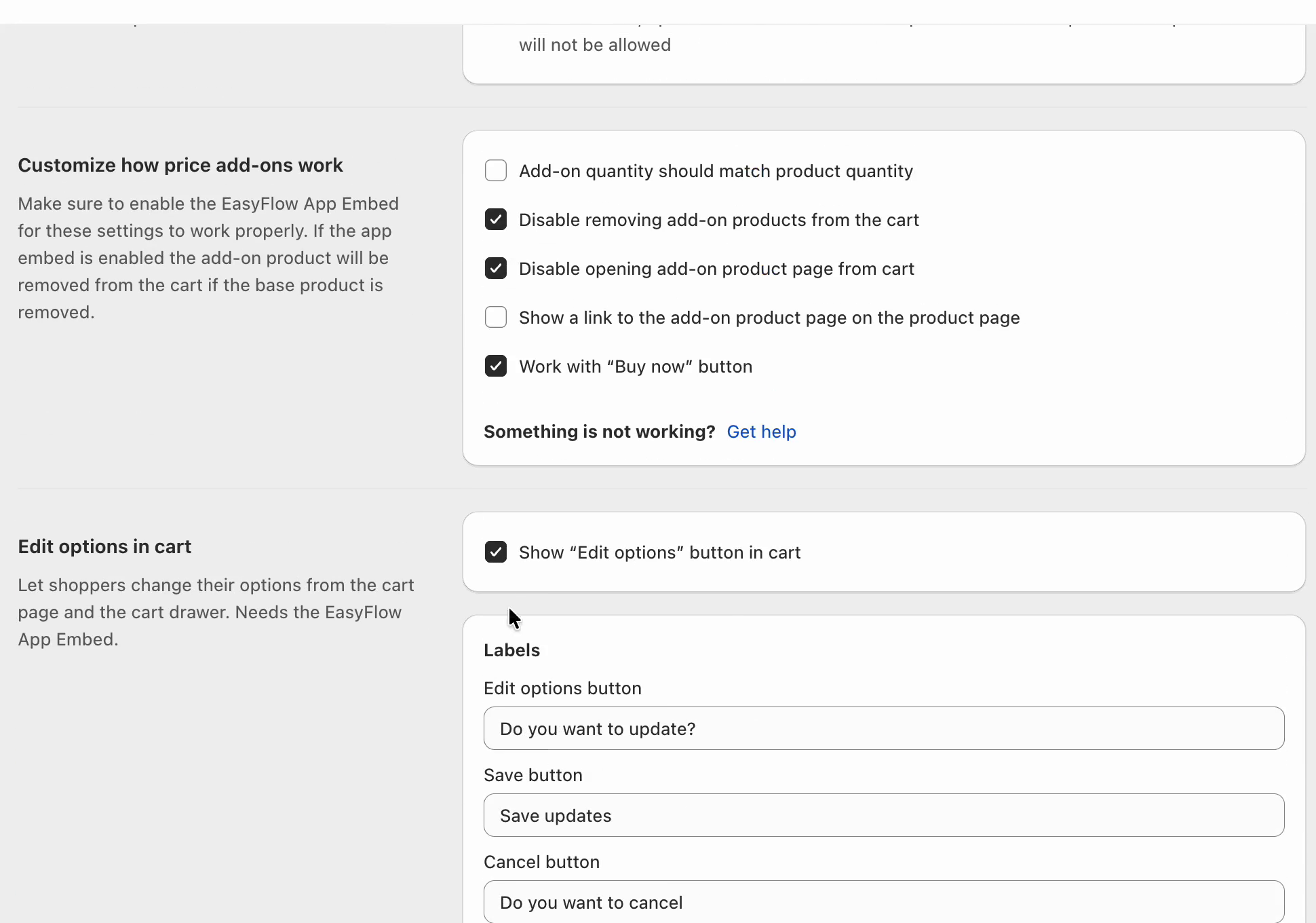
Go to Apps → EasyFlow → Settings from the left panel and scroll down to the Edit options in cart section. Tick Show “Edit options” button in cart and click Save.
While you are here, you can also tick Work with “Buy now” button under Customize how price add-ons work, so the options also carry over when shoppers use the Buy it now button.
Step 4: Customize the Labels and Messages #
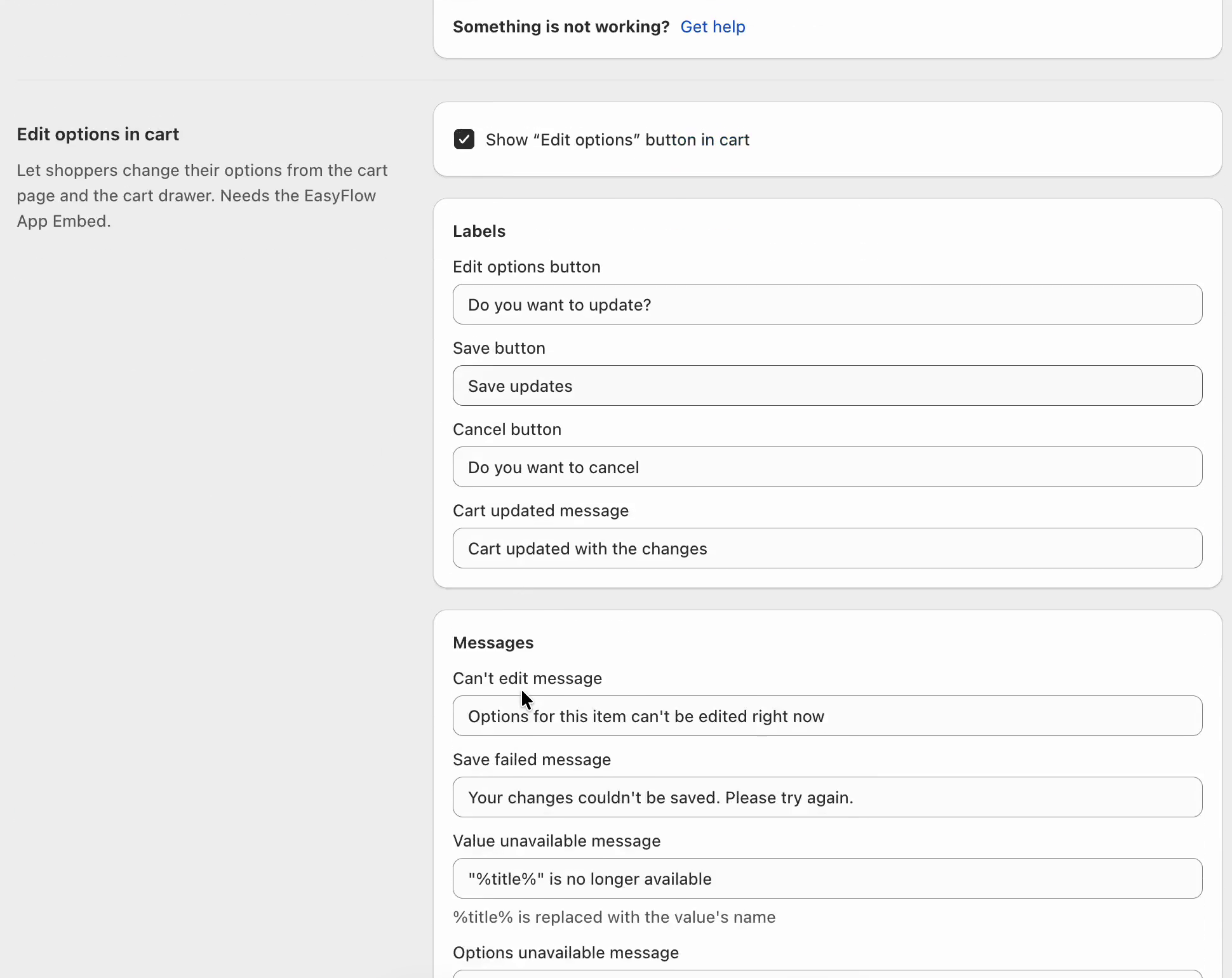
Right below the checkbox, you can change the text shoppers see. Each field comes with a default value, so you can leave it as it is or rewrite it to match your store’s tone.
Labels
| Field | Default text | Where it shows |
| Edit options button | Do you want to update? | The button under each cart item |
| Save button | Save updates | Confirms the changes in the popup |
| Cancel button | Do you want to cancel | Closes the popup without changes |
| Cart updated message | Cart updated with the changes | Shown after a successful update |
Messages
| Field | Default text | When it shows |
| Can’t edit message | Options for this item can’t be edited right now | The item’s options can’t be edited |
| Save failed message | Your changes couldn’t be saved. Please try again. | The update fails |
| Value unavailable message | “%title%” is no longer available | A picked value was removed (%title% = value name) |
| Options unavailable message | %count% options are no longer available | Several options were removed (%count% = number of options) |
| Item removed message | This item is no longer in your cart | The item was removed from the cart |
| Add-on out of stock message | %product% is currently out of stock | A price add-on is out of stock (%product% = add-on product name) |
When you are done, click Save.
Note: Keep the placeholders like %title%, %count% and %product% in your text. EasyFlow replaces them with the real names and numbers on the storefront.
How Shoppers Edit Options from the Cart #
That’s it. Here is how the feature works on your storefront.
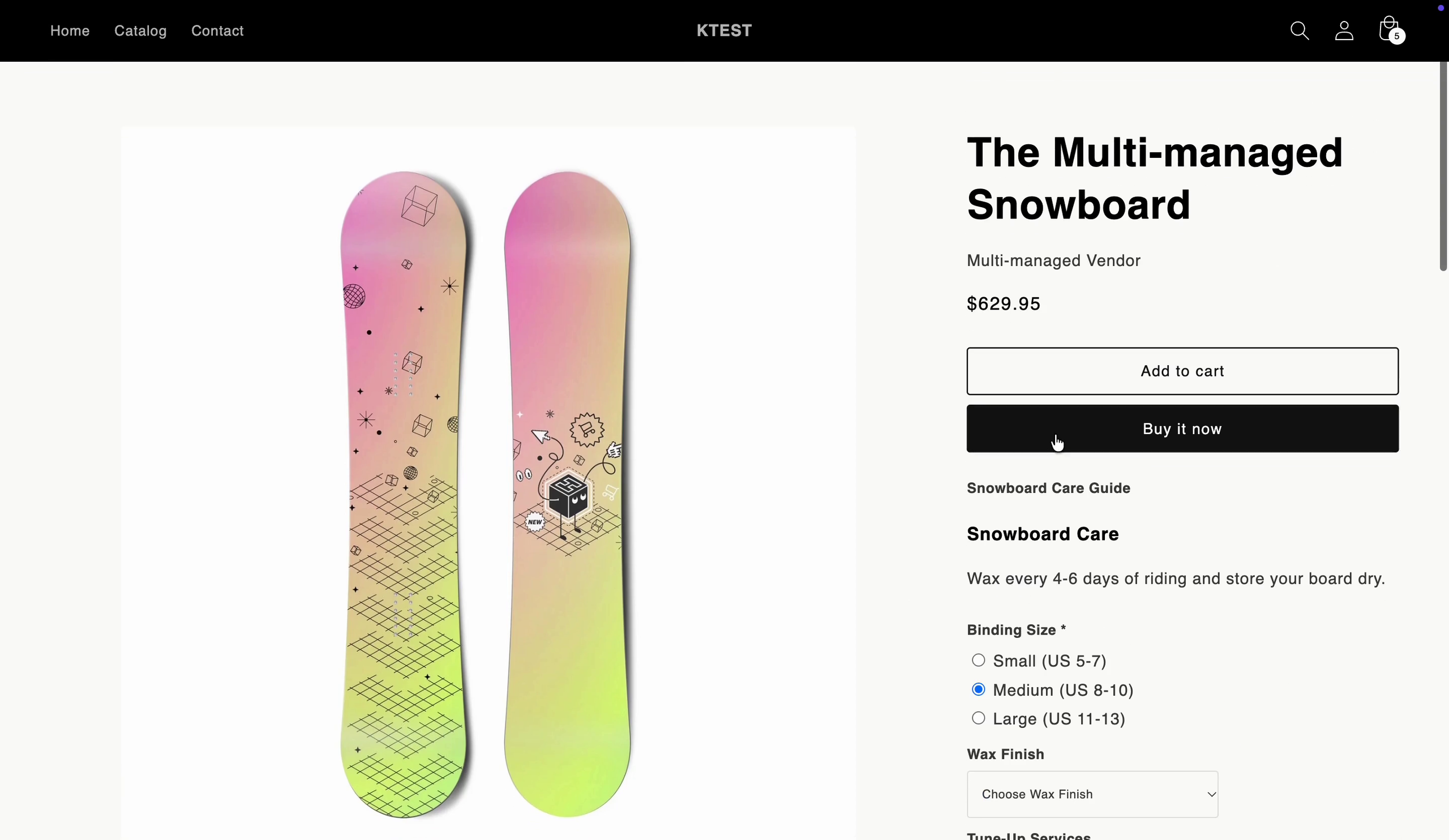
i. The shopper picks their options on the product page and clicks Add to cart.
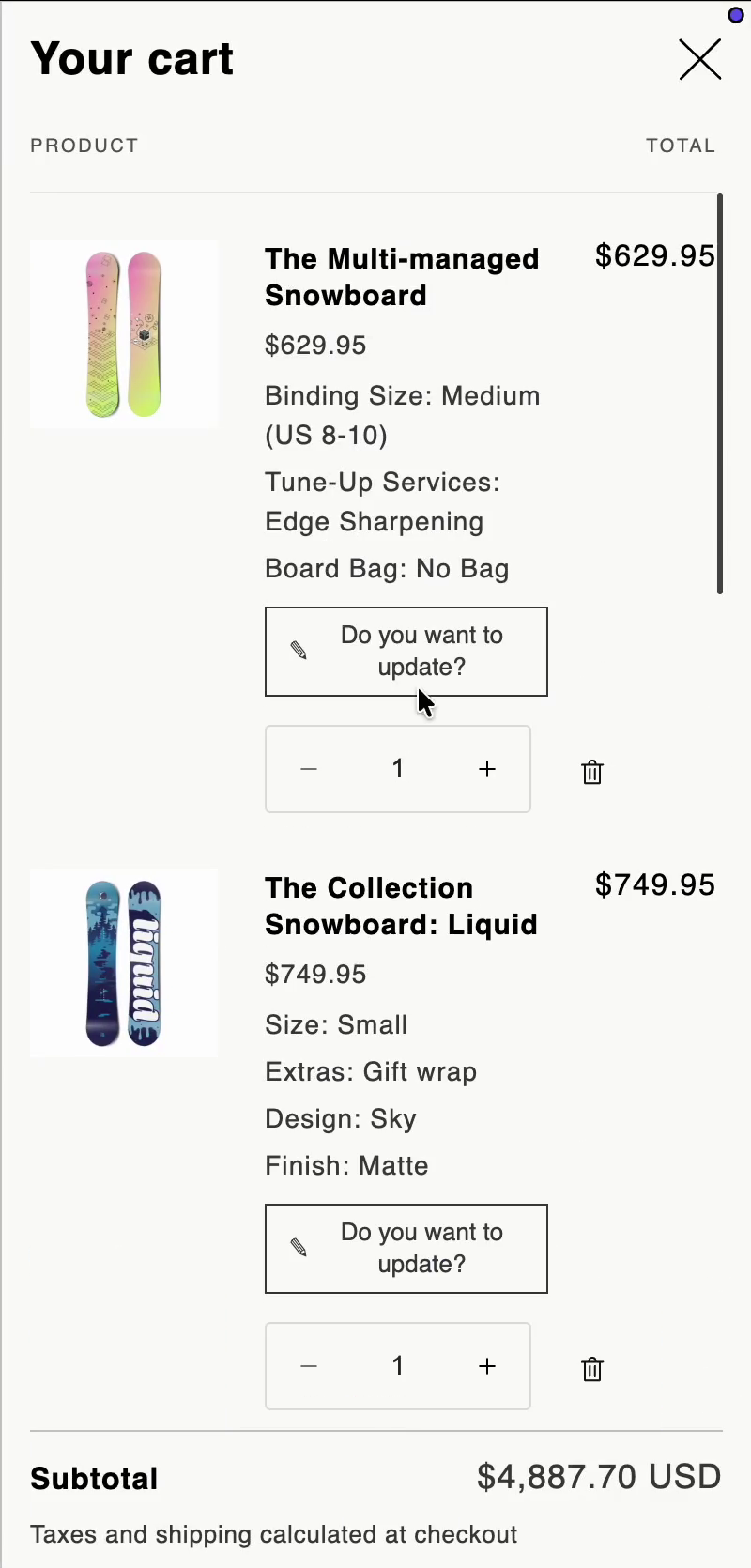
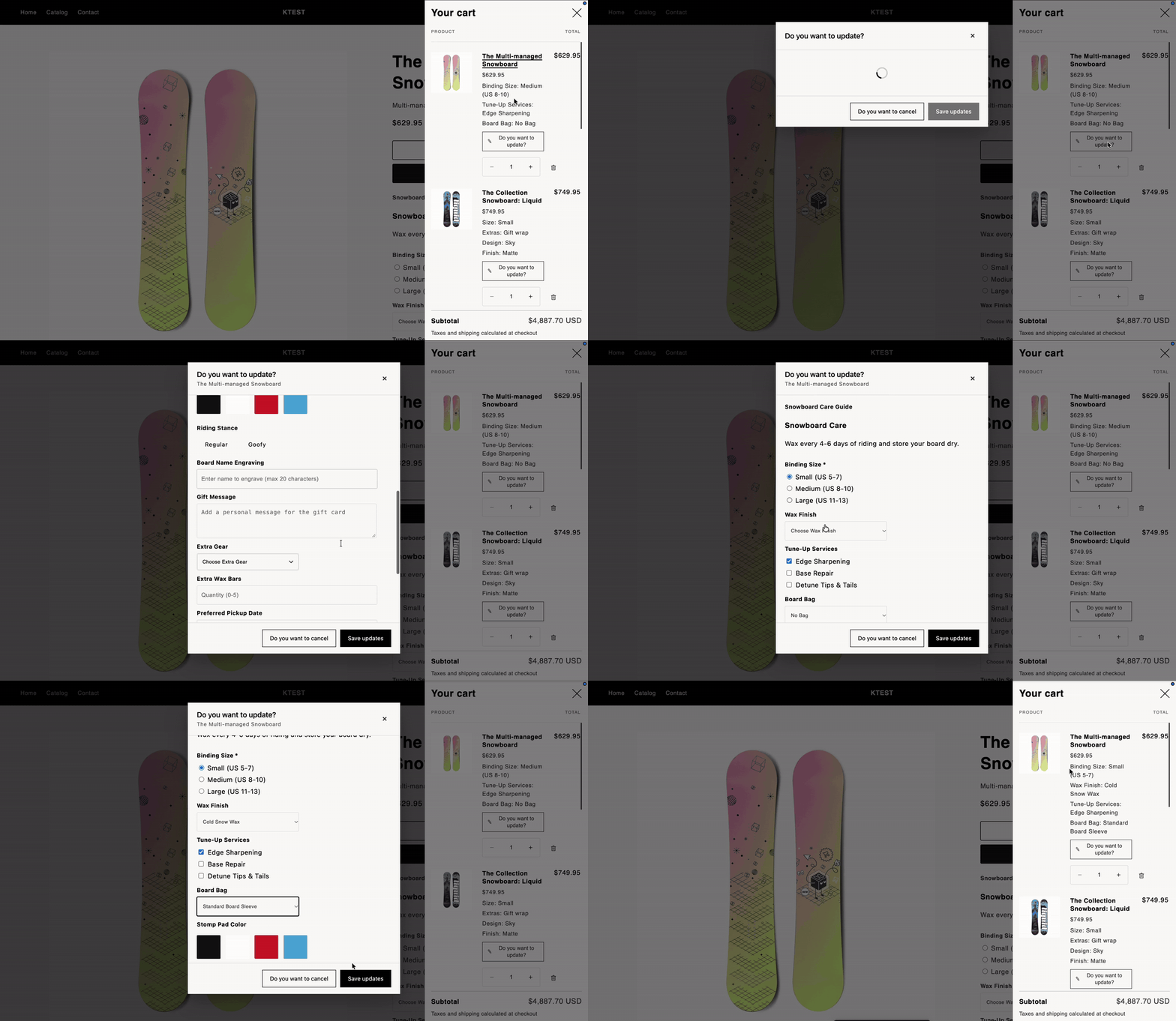
ii. In the cart drawer or cart page, each item lists the selected options with an Edit options button below it (labeled “Do you want to update?” by default).
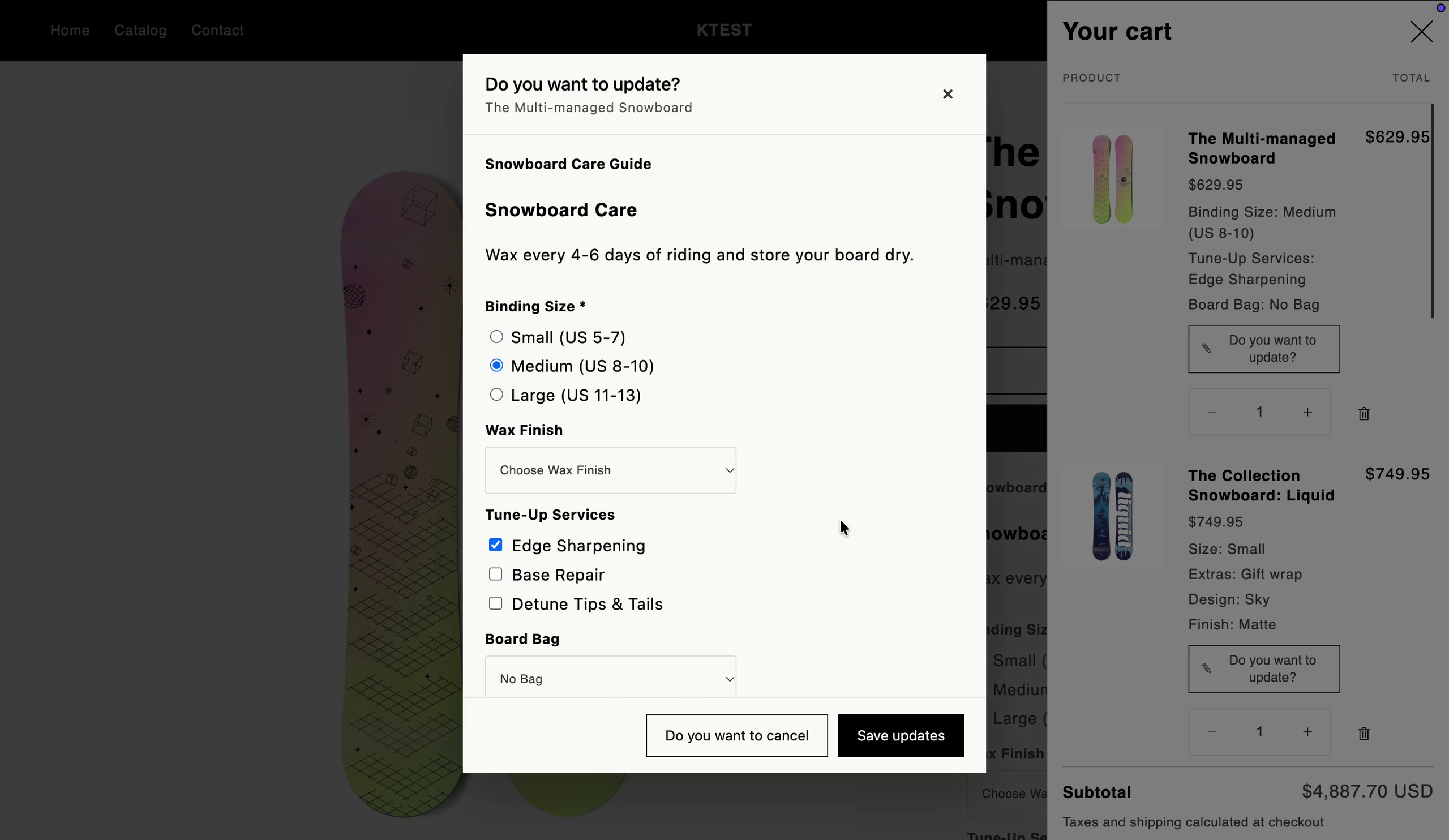
iii. Clicking the button opens a popup with all the options, already filled in with the shopper’s current choices.
iv. The shopper changes what they want and clicks Save updates.
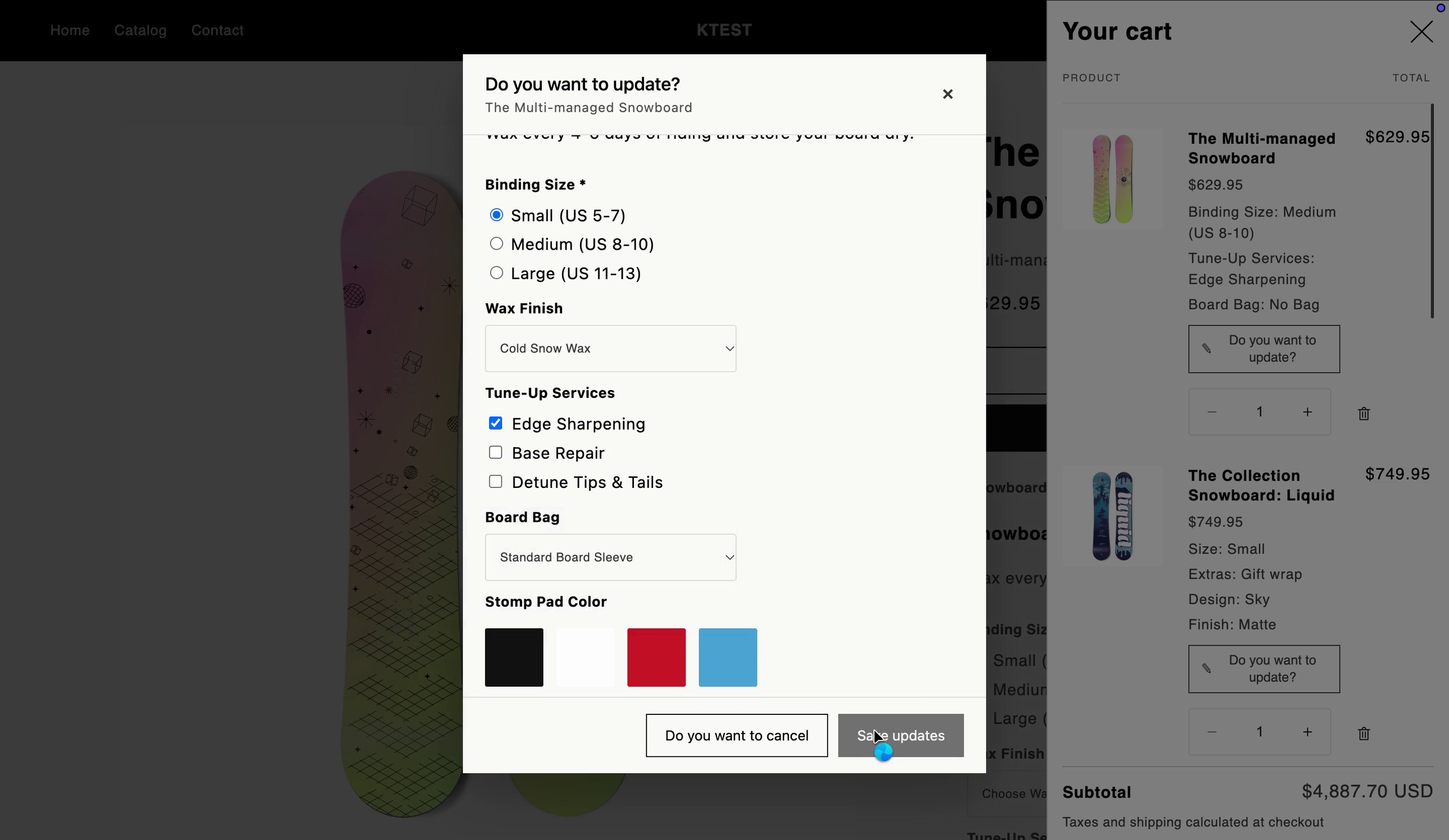
v. The cart item updates right away with the new options. Its position and quantity stay the same.
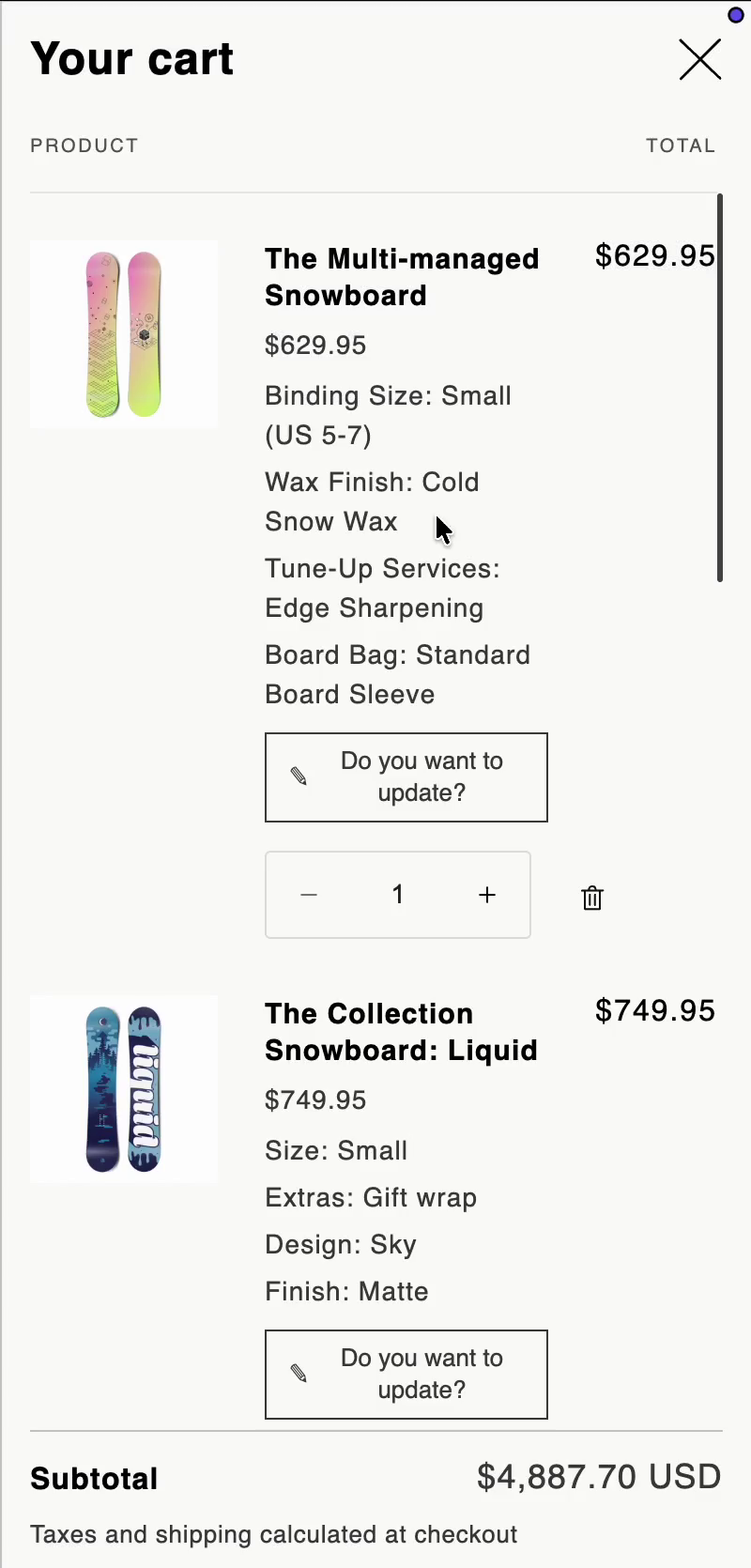
In this example, the shopper changes Binding Size from Medium to Small, adds Cold Snow Wax and switches Board Bag from No Bag to Standard Board Sleeve, all without leaving the cart.
Final Outcome
That’s how easily you can let shoppers edit their product options from the cart with EasyFlow.
Fewer removed items and fewer wrong orders mean a smoother checkout for your customers.
For further assistance, do not hesitate to reach out to our support team.


