

EasyFlow has integrated with Shopify Sidekick, the next generation AI assistant introduced by Shopify. Welcoming this innovation, the EasyFlow Product Customization App has seamlessly incorporated Sidekick into its ecosystem so merchants and shoppers can interact with product data in a faster, more natural way.
As a result, merchants using EasyFlow can now offer their customers an upgraded shopping experience, allowing them to easily discover, learn about and inquire about products using Shopify Sidekick. Instead of clicking through menus and product pages, users can simply type a question and get an instant, context aware answer.
Follow this guide to learn how to find products using Shopify Sidekick with EasyFlow, check real time stock availability and pull quick summaries of variants directly from your Shopify admin.
How to Use Shopify Sidekick for Product Option Customization with EasyFlow #
Follow the six steps below in order. The first four cover a store wide audit from the Shopify home screen. The last two show how to work with Sidekick while the EasyFlow app is open, which is useful when you want to check a specific option set.
Step 1: Open Sidekick from Your Shopify Admin #
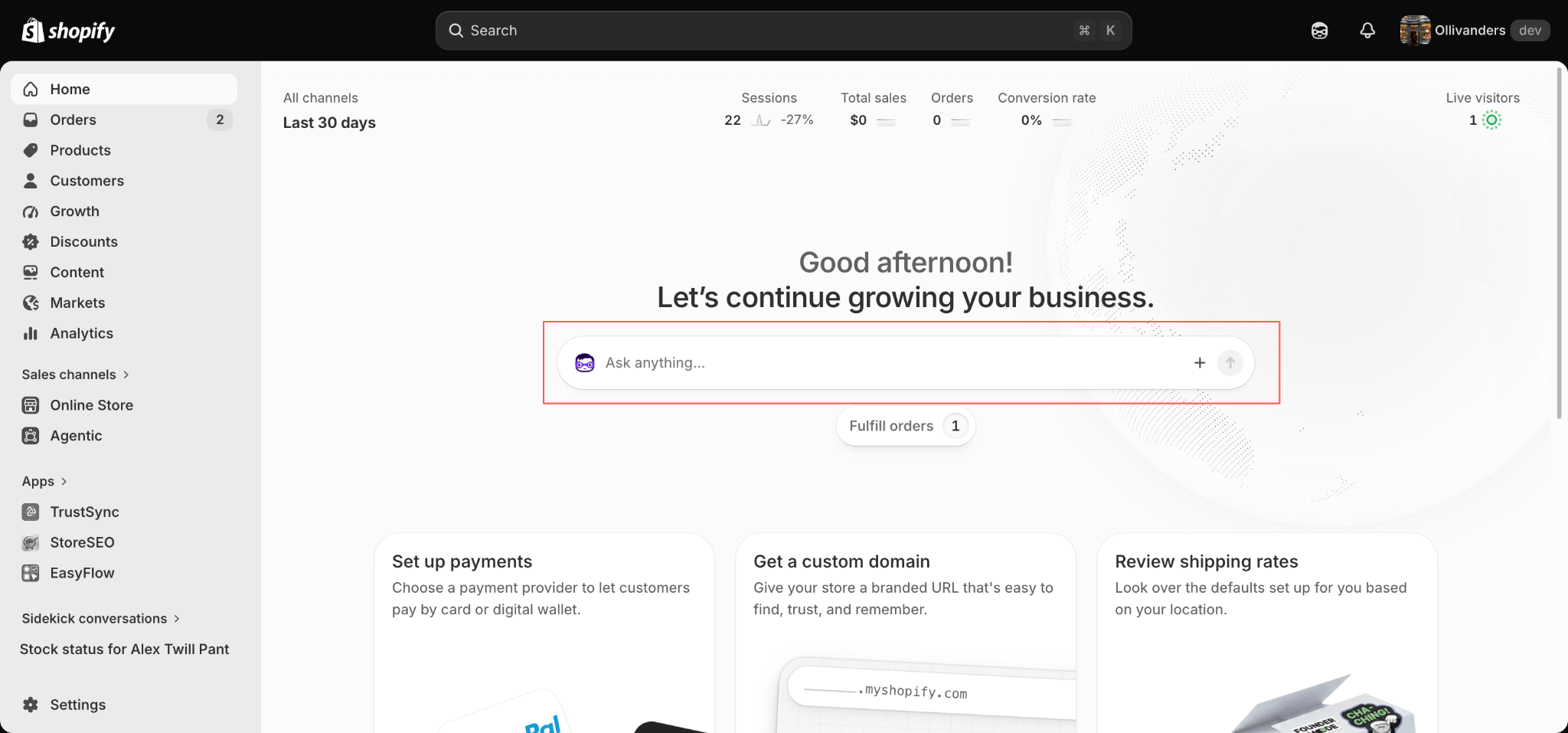
Log in to your Shopify admin and stay on the Home page. In the middle of the dashboard you will see the Ask anything bar, which is the entry point for Sidekick. Click inside that bar to start a new conversation.
You can also launch Sidekick from the icon in the top right corner of the admin if you prefer to keep your current page open. Both routes lead to the same assistant and share the same conversation history, which appears under Sidekick conversations in the left sidebar.
Step 2: Ask Your Question & Grant App Access #
Type a plain language question about your product options. There is no special syntax to learn and you do not need to name the app, although mentioning EasyFlow helps Sidekick route the request faster. A good opening prompt looks like this:
Do I have any custom product options set up on my store, like colour swatches or dropdowns? How many?
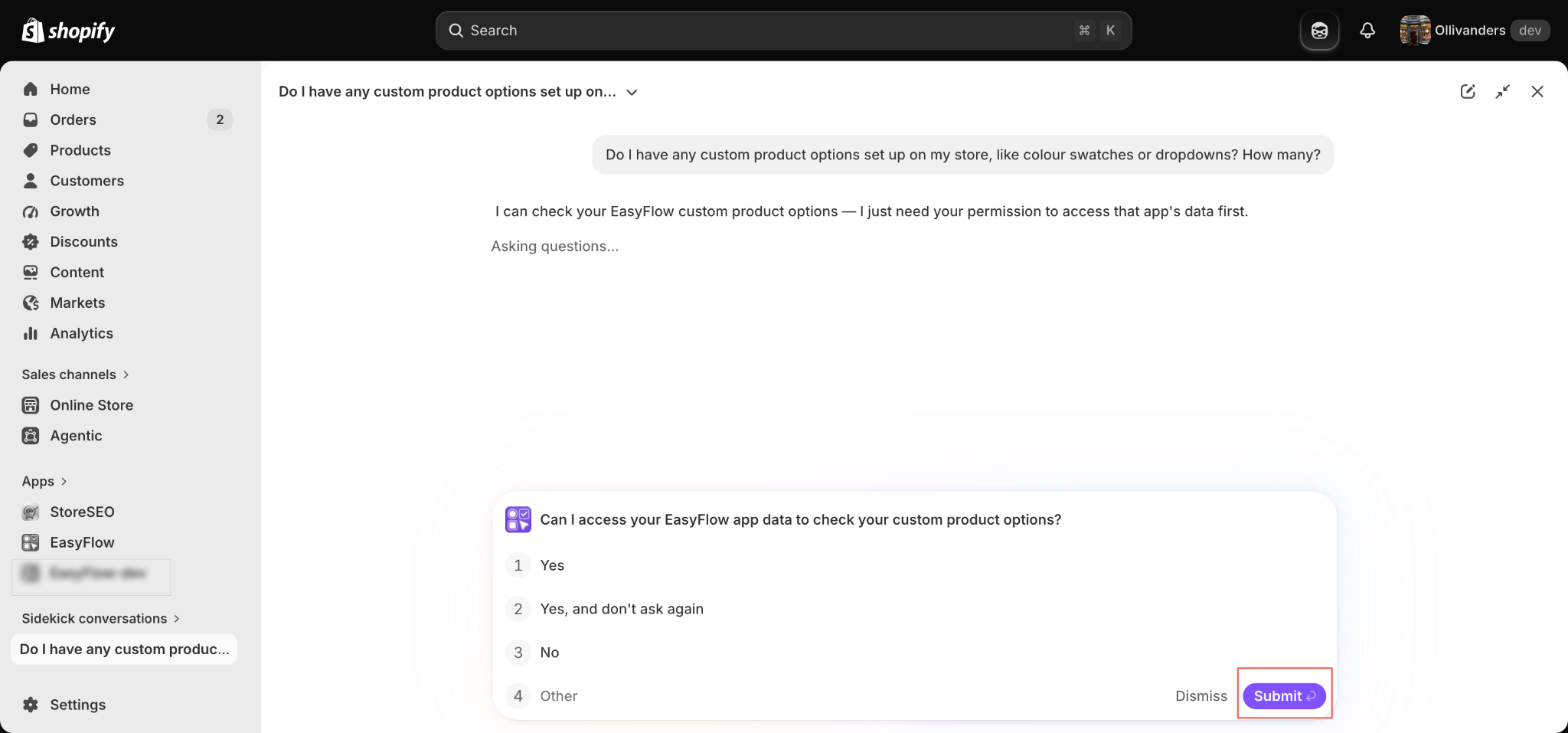
Sidekick replies that it can check your EasyFlow options but needs permission first. A consent card then appears with four choices:
- Yes,
- Yes, and don’t ask again,
- No and
- Other.
Pick the option you want and click Submit to continue.
Choosing Yes grants access for this request only, so Sidekick will ask again next time. Choosing Yes, and don’t ask again saves the permission for future conversations, which is the smoother choice if you plan to use Sidekick with EasyFlow regularly.
Step 3: Let Sidekick Work with EasyFlow #
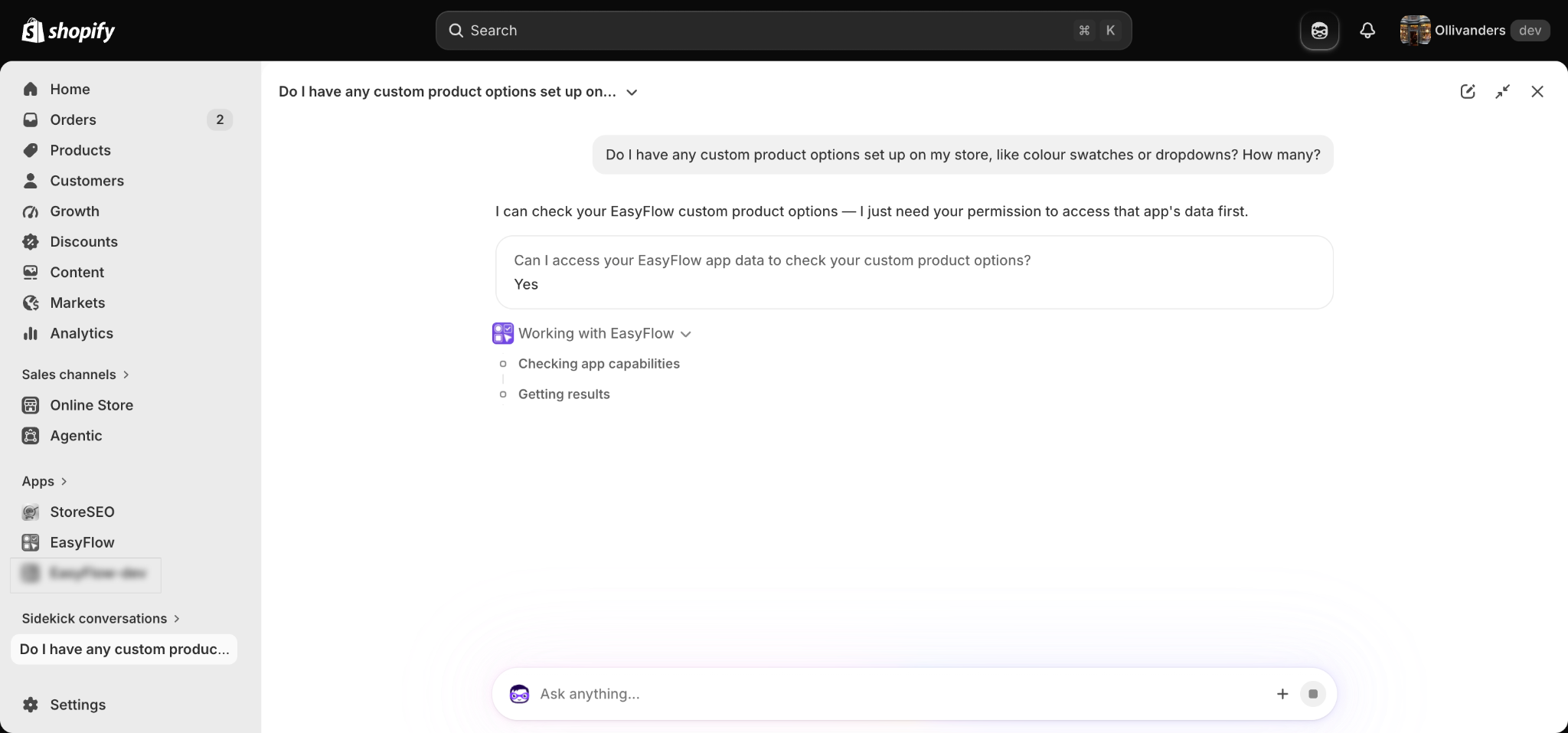
Once permission is granted, your answer is recorded in the conversation and Sidekick begins working. A progress panel labelled Working with EasyFlow appears and shows each stage as it runs, usually Checking app capabilities followed by Getting results.
This normally takes a few seconds. Stores with large option libraries may take slightly longer because Sidekick reads every option and option set before it summarises anything. You can expand the panel at any time to see exactly which steps were performed, which is handy when you want to verify where an answer came from.
Step 4: Review Your Product Option Summary #
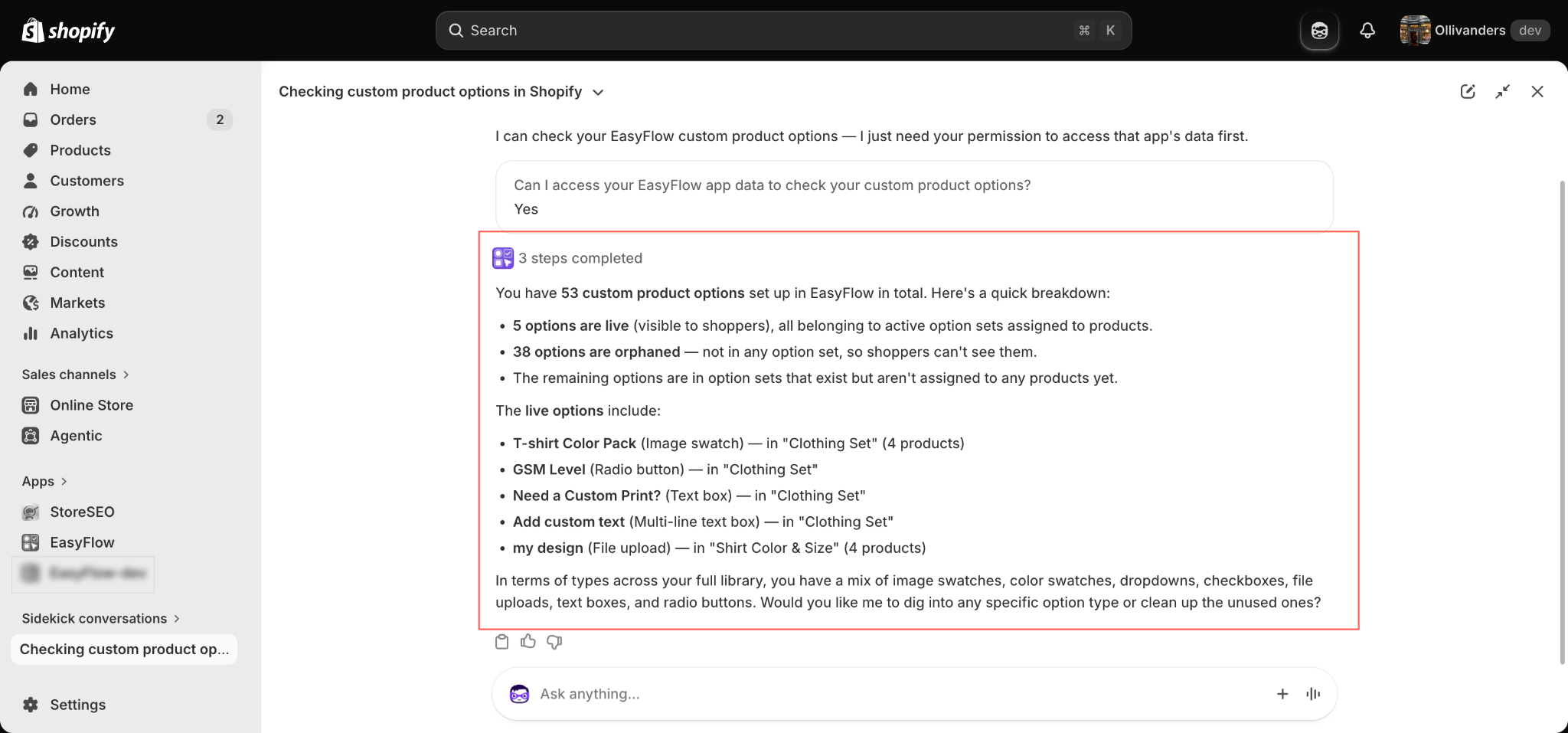
When the run finishes, the panel changes to 3 steps completed and Sidekick returns a structured summary of your entire option library. In the example below the store has 53 custom product options in EasyFlow, broken down by status.
- 5 options are live, which means they belong to active option sets that are assigned to products and are visible to shoppers.
- 38 options are orphaned, which means they are not part of any option set so shoppers never see them.
- The remaining options sit in option sets that exist but have not been assigned to any products yet.
Sidekick then lists each live option with its type and parent option set, for example T-shirt Color Pack as an image swatch inside Clothing Set, GSM Level as a radio button, Need a Custom Print? as a text box and my design as a file upload inside Shirt Color & Size. It closes by offering a next action, such as digging into a specific option type or cleaning up the unused options.
Step 5: Ask About Option Sets from Inside EasyFlow #
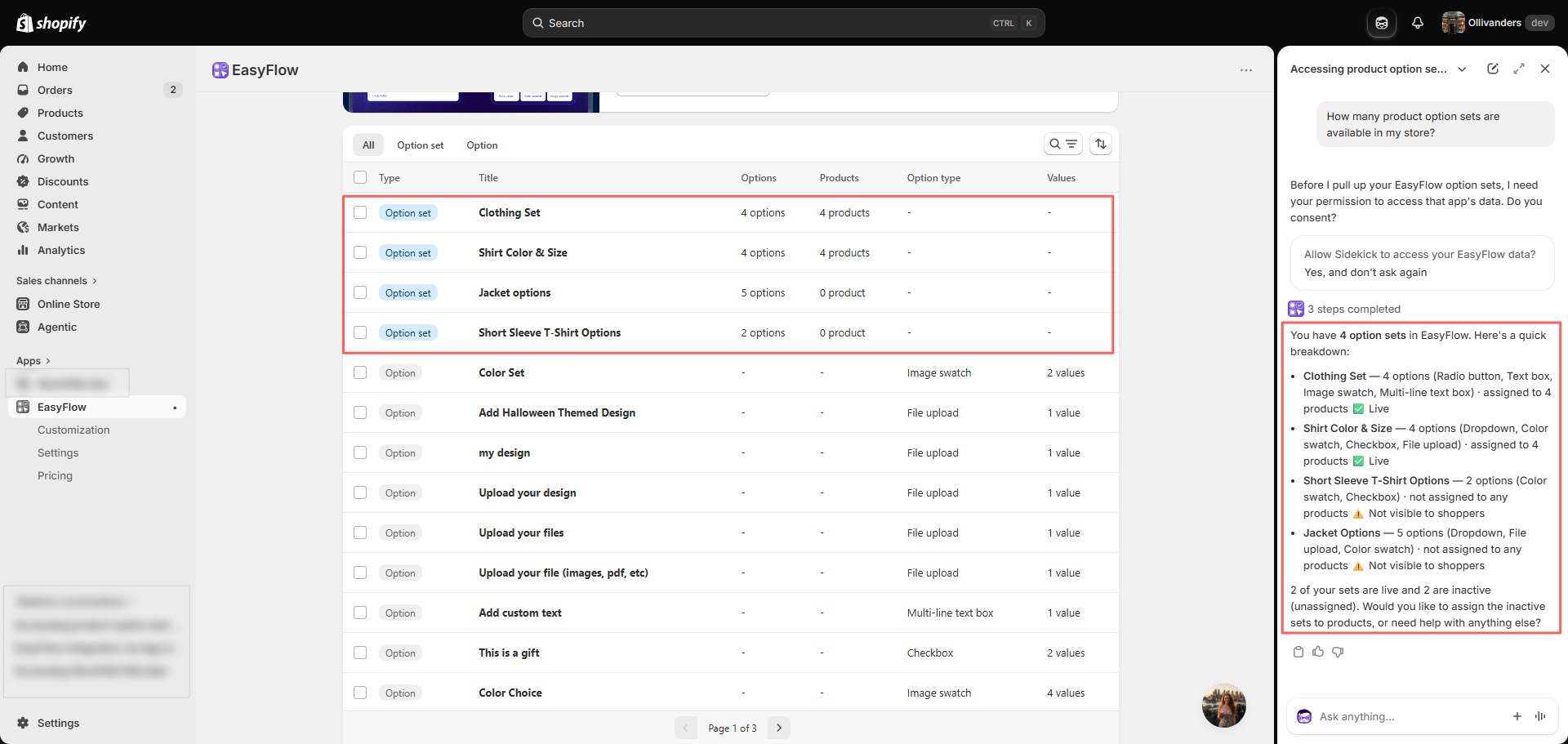
Sidekick also works while you have EasyFlow open. Go to Apps and select EasyFlow, then open Sidekick from the top right icon. The assistant docks into a side panel so your option list stays visible on the left while you ask questions on the right.
Try a question about option sets at the store level:
How many product option sets are available in my store?
Sidekick asks for consent again if you have not saved the permission, then returns a set by set breakdown. In the example it reports four option sets, each with its option count, the option types it contains, how many products it is assigned to and a status marker showing whether it is live or not visible to shoppers. Two sets are live and two are inactive because they have no products assigned.
Because the app is open beside the panel, you can match every line of the answer to the corresponding row in your EasyFlow table, which makes verification quick.
Step 6: Drill Into a Specific Option Set #
Broad answers are useful for auditing but most day to day work happens inside one option set. Ask a follow up question and Sidekick keeps the context of the conversation, so you do not need to repeat yourself.
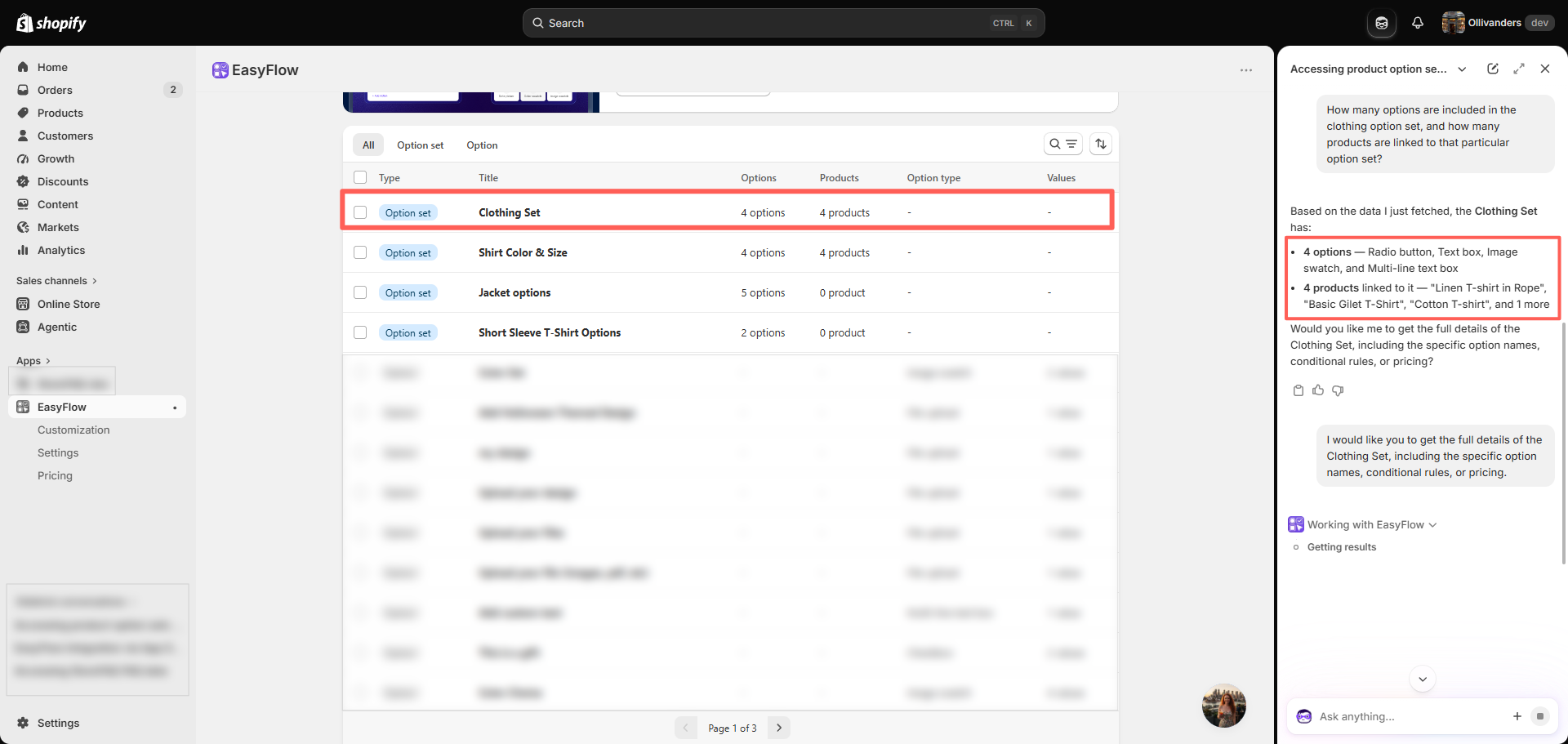
How many options are included in the clothing option set, and how many products are linked to that particular option set?
Sidekick answers that Clothing Set contains four options, namely a radio button, a text box, an image swatch and a multi-line text box, and that four products are linked to it including Linen T-shirt in Rope, Basic Gilet T-Shirt and Cotton T-shirt. It then offers to fetch the full details of the set, covering specific option names, conditional rules and pricing.
Accept that offer to get the deepest level of detail. This is where the integration saves the most time, because it collapses several clicks through the EasyFlow interface into a single question.
Final Outcome #
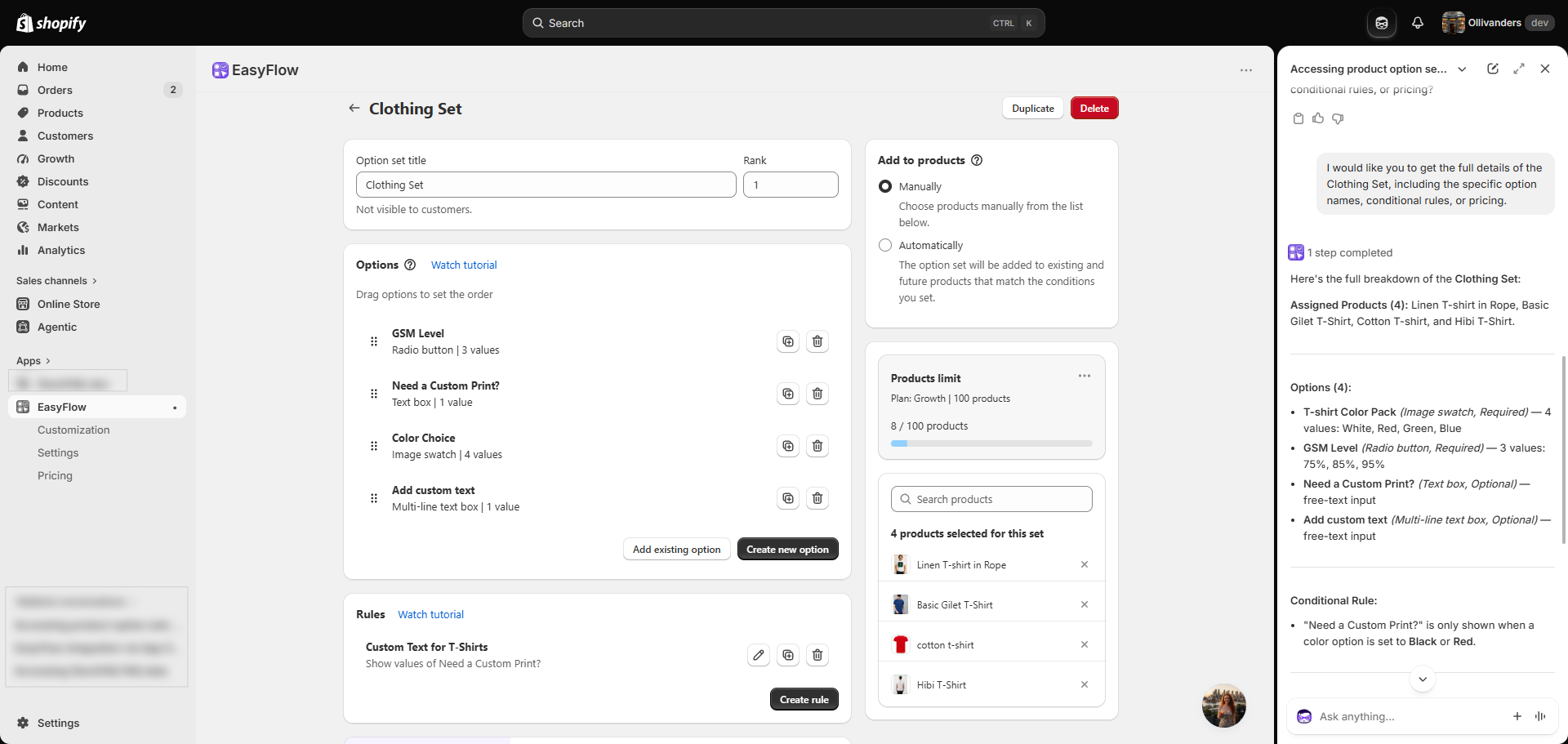
Sidekick returns the complete configuration of the Clothing Set and opens the matching editor in EasyFlow so you can act on the information straight away. The full breakdown includes everything you would otherwise gather by hand.
- Assigned products (4): Linen T-shirt in Rope, Basic Gilet T-Shirt, Cotton T-shirt and Hibi T-Shirt.
- T-shirt Color Pack (image swatch, required) with four values: White, Red, Green and Blue.
- GSM Level (radio button, required) with three values: 75%, 85% and 95%.
- Need a Custom Print? (text box, optional) as a free text input.
- Add custom text (multi-line text box, optional) as a free text input.
- Conditional rule: Need a Custom Print? is only shown when a color option is set to Black or Red.
On the left side of the screen the EasyFlow editor displays the same option set with its option order, its rules section and the products limit for your plan. You now have a verified picture of the set and a live editor ready for changes, all from one conversation.
This is how easily you can customize product options with Shopify Sidekick and EasyFlow. From checking how many options you have and which ones are live, to getting step-by-step instructions for adding new option types, Sidekick makes store management faster and more intuitive. Everything happens through a simple chat interface right inside your Shopify admin.
If you are feeling stuck at any step, feel free to reach out to our customer support team, we are always happy to help.


