
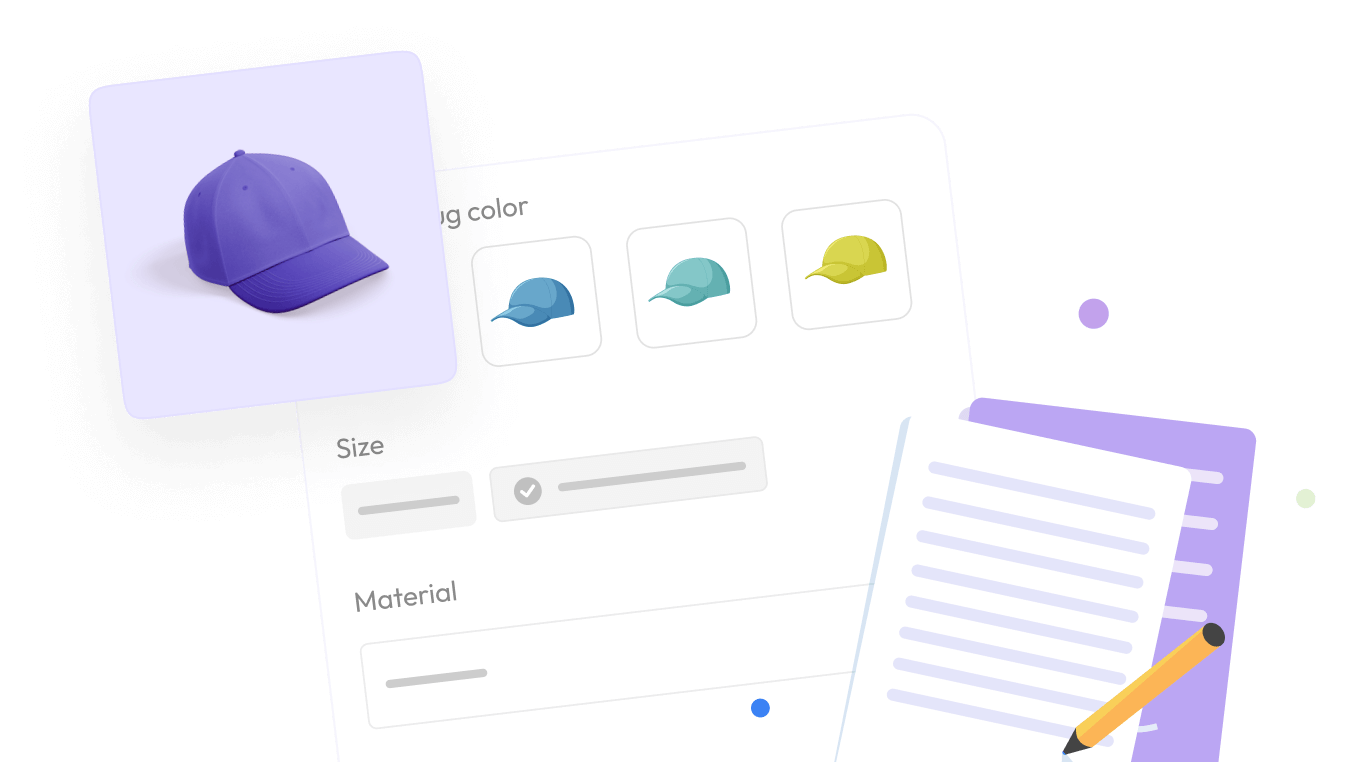

Setting up product options on Shopify has always meant clicking through menus. You open the app, find the product, create an option, add values, set a price and repeat. It works, but it takes time.
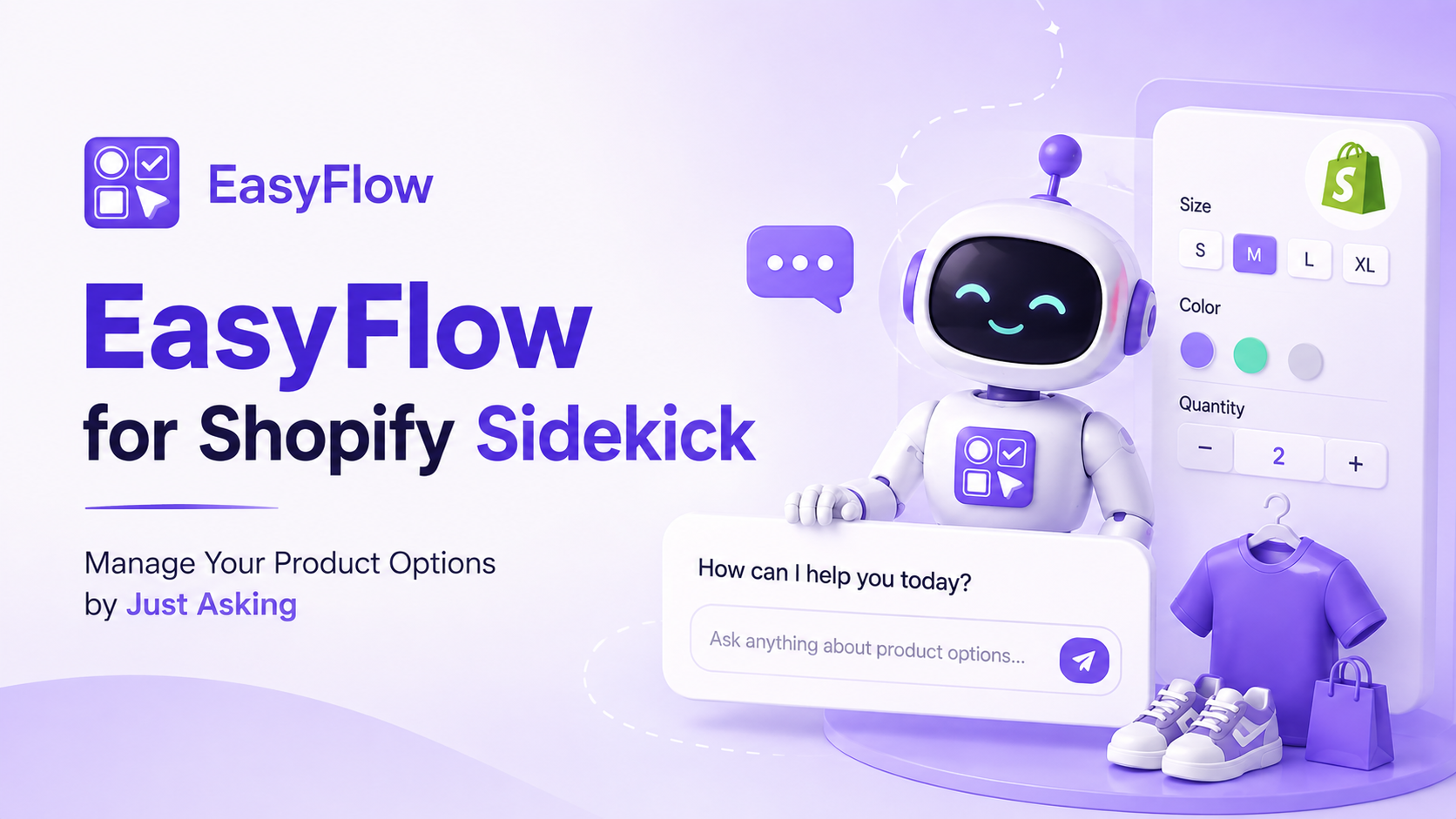
Now there is a faster way. EasyFlow MCP lets you build and manage Shopify product options by simply describing what you want in plain language.
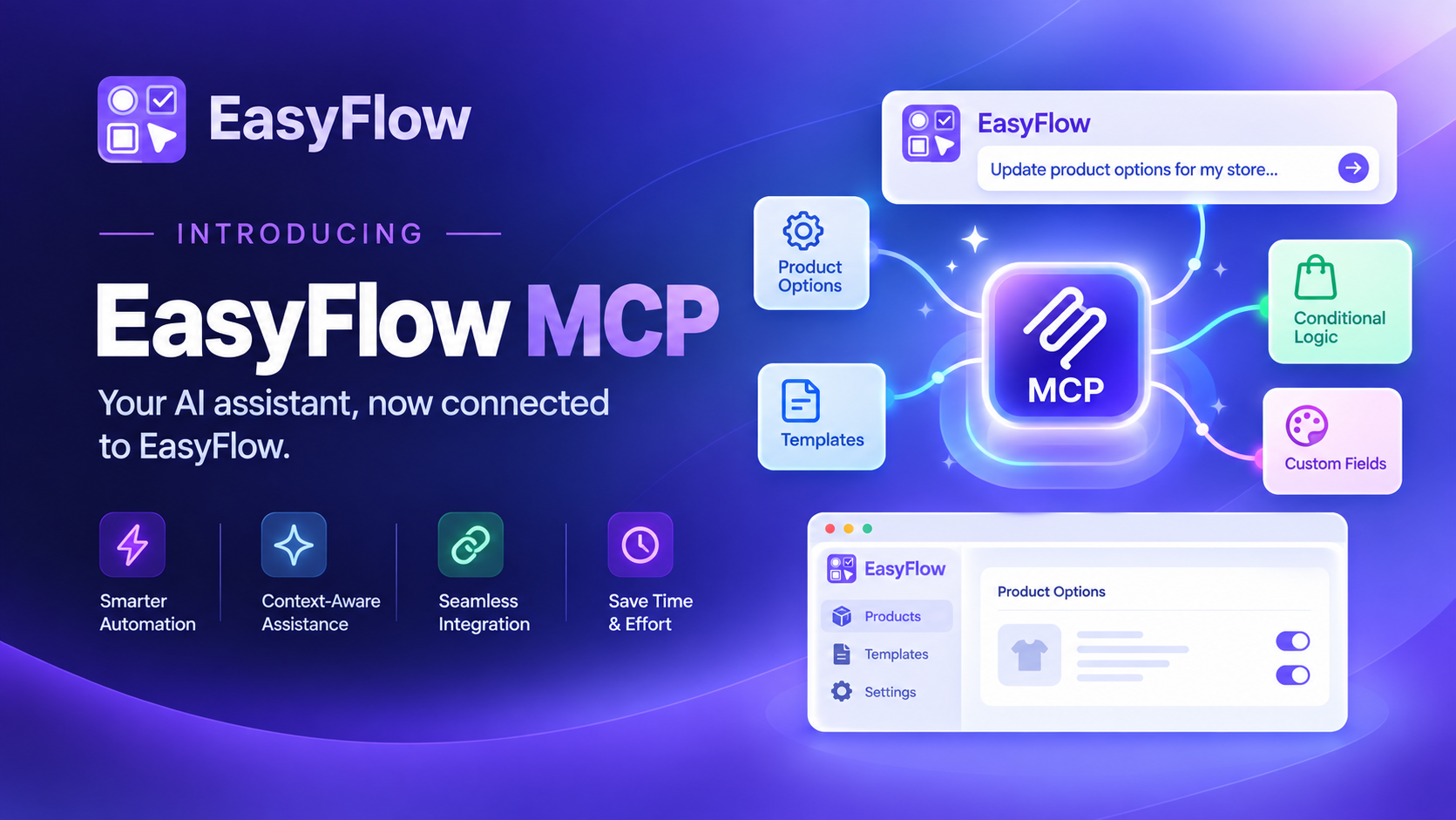
You type a request, your AI assistant does the work, and the change goes live on your store. No menu digging required. This post explains what EasyFlow MCP is, why it matters for your store, and how to connect it to the AI tool you already use.
A Quick Summary/TL;DR
EasyFlow MCP lets you manage Shopify product options by describing what you want in plain language, instead of clicking through the app. It connects EasyFlow to AI assistants through the Model Context Protocol (MCP) and works with five tools: Claude, ChatGPT, Cursor, Codex, and Claude Code.
- What it does: Run EasyFlow’s full toolset (20 tools) through chat — search products, build option sets, add price add-ons, create swatches and file uploads, set conditional rules, and check sync status.
- Why it matters: Go beyond Shopify’s variant limits and offer real product personalization without touching a menu.
- Is it safe: Yes. Every write action is confirmed before saving, deletions ask twice, and connections use OAuth, so you stay in control.
- How to start: Install EasyFlow → open AI Assistant (MCP) in your Shopify admin → connect your preferred AI tool with one URL or command.
What Is MCP And Why Should Merchants Care?
MCP stands for Model Context Protocol. It is an open standard that lets AI assistants talk directly to the tools you already use. You can read more about the standard on the Model Context Protocol site.
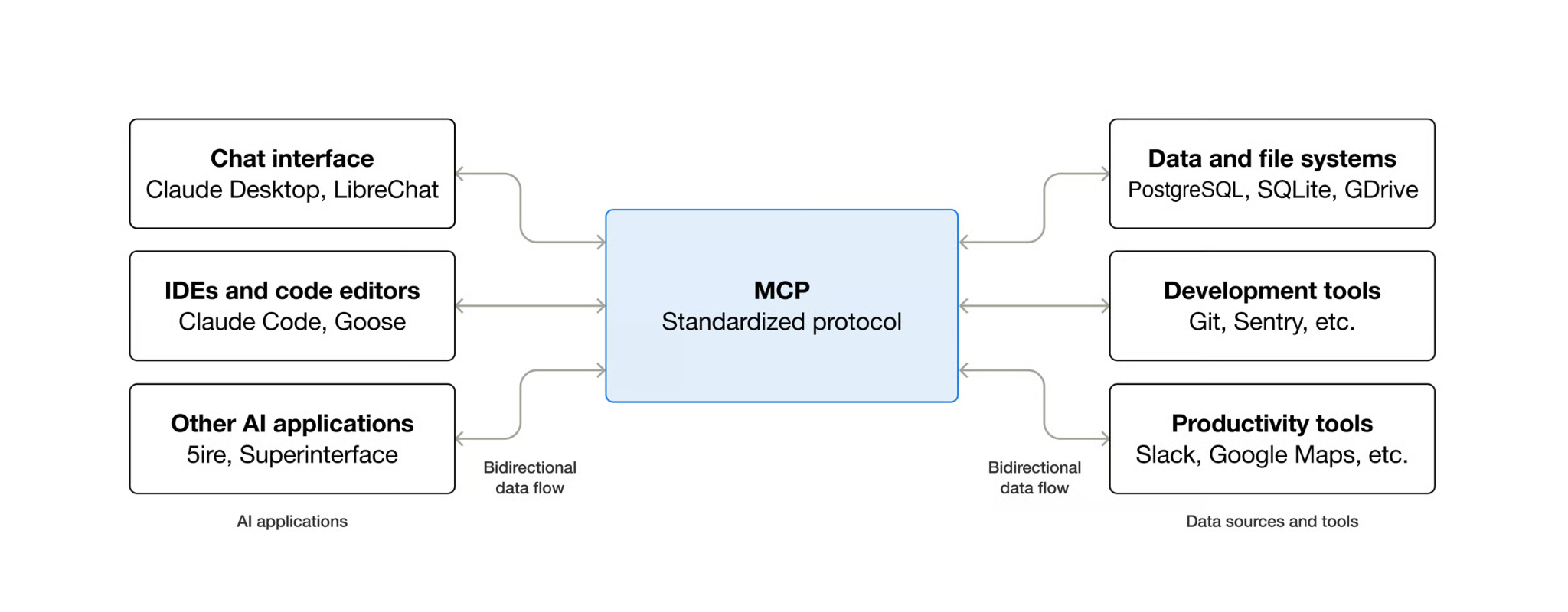
Think of it as a universal connector. Instead of copying data back and forth, your AI assistant connects to EasyFlow once and can then act on your store for you. That is the shift behind AI product customization for Shopify. You move from clicking to conversing.
For a store owner, the benefit is simple. You describe the outcome you want. The assistant searches your catalog, builds the option, and confirms the result. EasyFlow stays the single source of truth for your store the entire time.
What You Can Do with EasyFlow MCP
Once connected, your AI assistant can run the full EasyFlow toolset through 20 read and write tools. From a plain description, it can:
- Search products and collections in your store
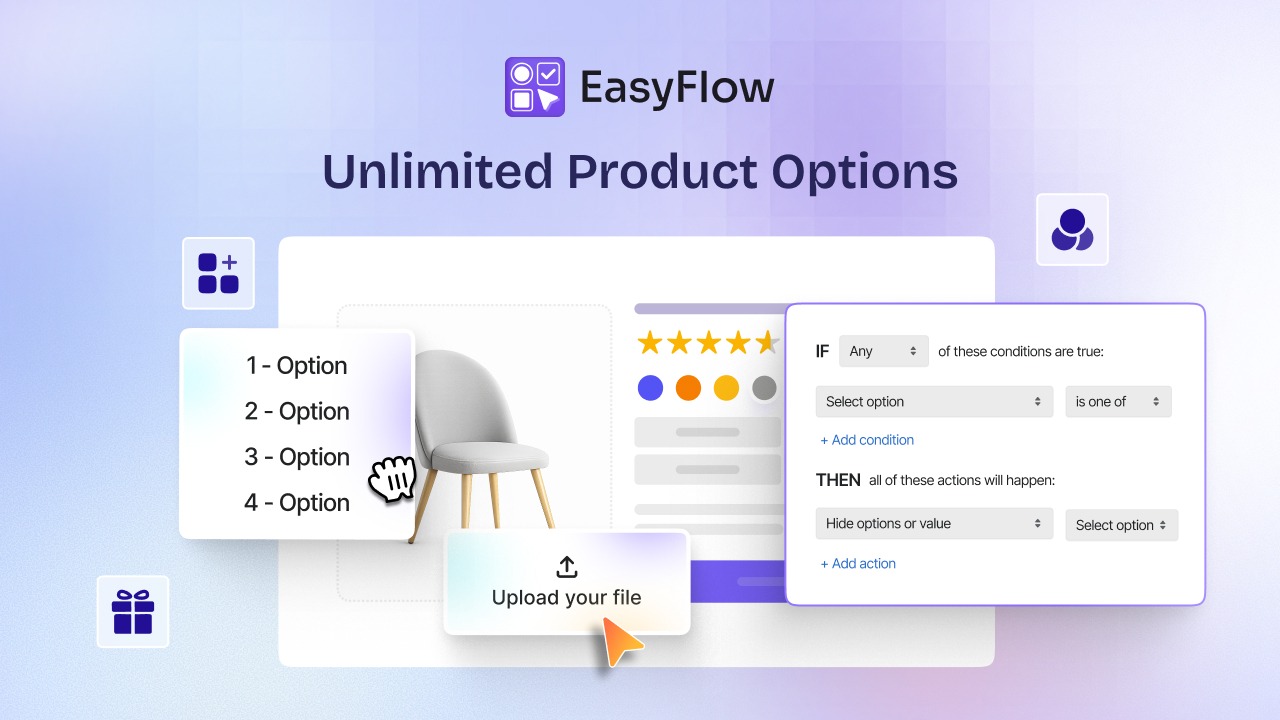
- Build product options and option sets for any product
- Apply price add-ons and extra charges
- Create color swatches and image swatches
- Add file upload options, dropdowns, and text fields
- Set conditional rules that show or hide options based on customer choices
- Duplicate option sets across similar products
- Check sync status so your changes reach the storefront
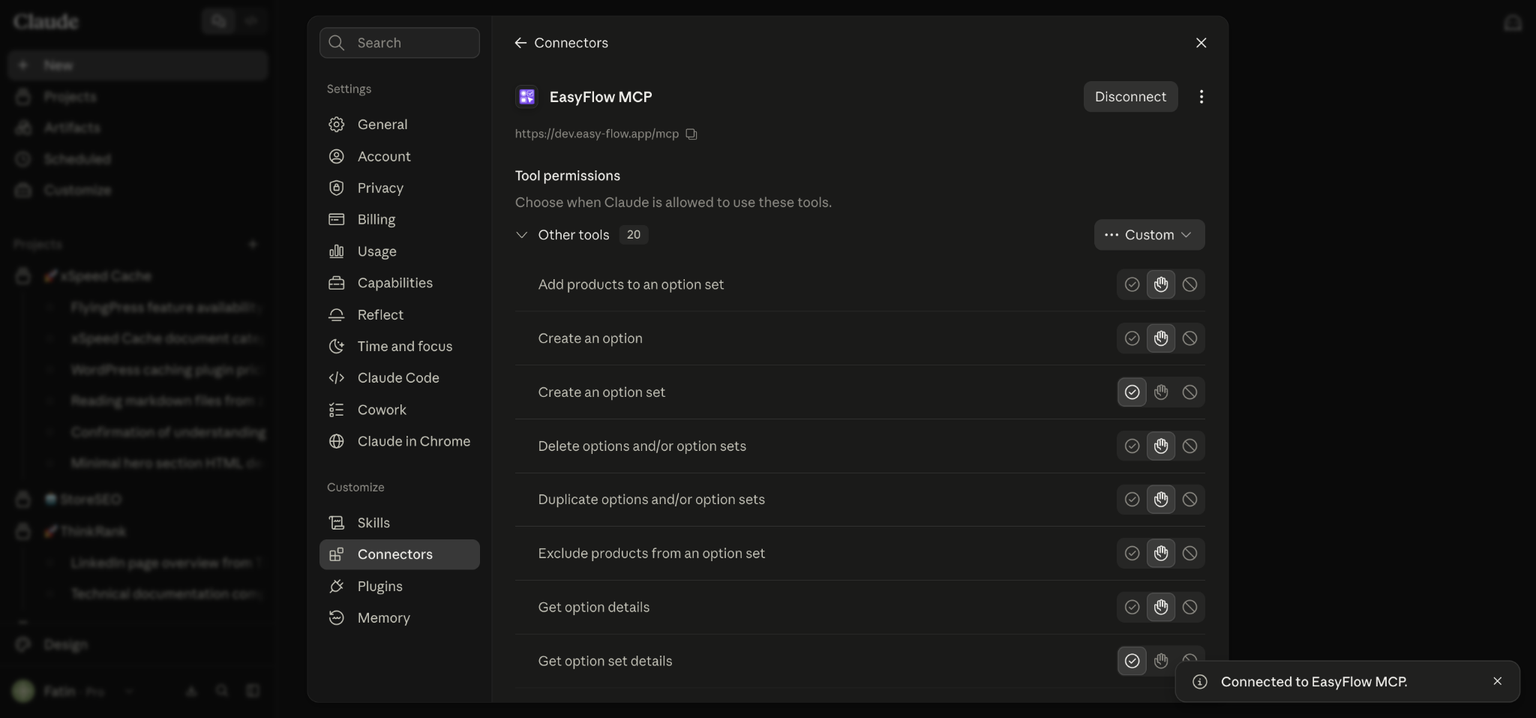
In short, everything you do today by hand, you can now do through a chat. That means you can go beyond the Shopify variant limits and offer real product personalization without touching a single menu.
Built-In Safety for Every Change
Speed is only useful when it is safe. EasyFlow MCP is built so you stay in control.
Before any write action, your assistant states exactly what it is about to create. You see the option name, the values, and the price before anything is saved. For deletions, it asks again, because deletions cannot be undone.
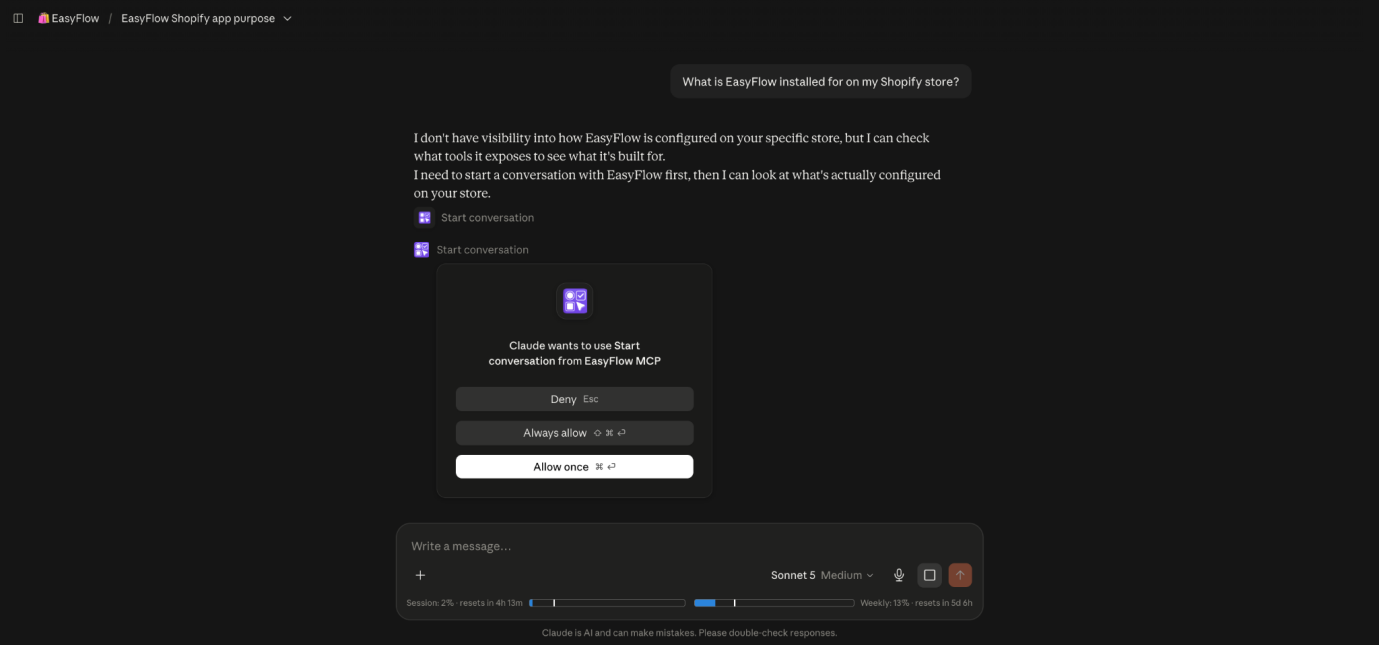
You also control permissions at the tool level. You can allow a tool once, always allow it, or deny it. Connections use OAuth, so you sign in securely and can disable access at any time.
Choose Your Preferred AI Assistant
EasyFlow MCP works with five popular AI tools. Pick the one you already use, follow the guide, and you will be connected in a few minutes. Each guide walks you through setup, a one-time sign-in, and a real example on a live product.
1. Claude
If you already use Claude.ai or the Claude desktop app, this is the fastest path. You copy one MCP server URL, add it as a custom connector, and start managing options through a normal chat. This is the simplest way to connect Claude to Shopify for product customization.
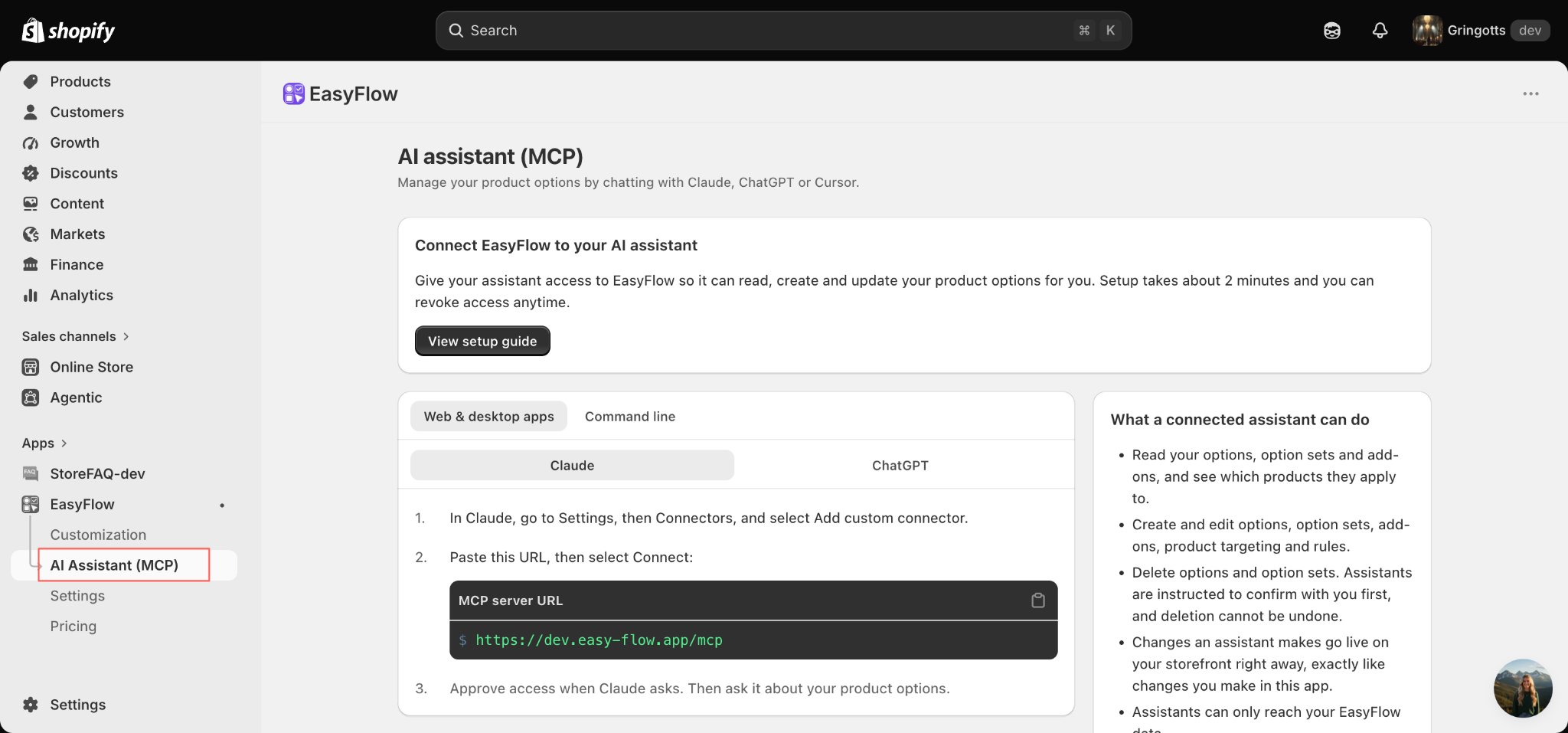
👉 Learn how to connect Claude with EasyFlow MCP.
2. ChatGPT
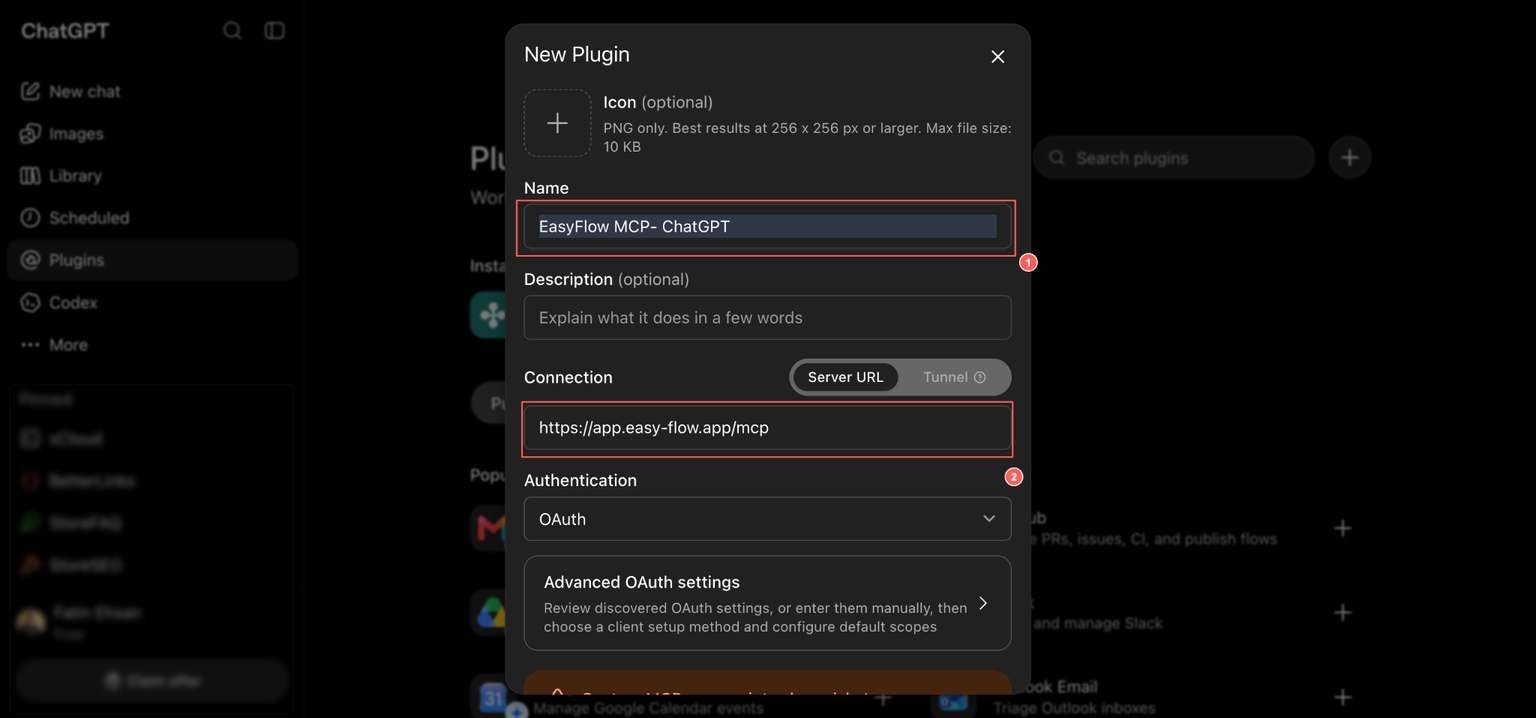
Prefer ChatGPT? You can turn it into a working front end for your store. You create a plugin, point it at your EasyFlow server URL, sign in once, and then build options by describing them. This is the guide for anyone searching for an AI assistant for Shopify inside ChatGPT.
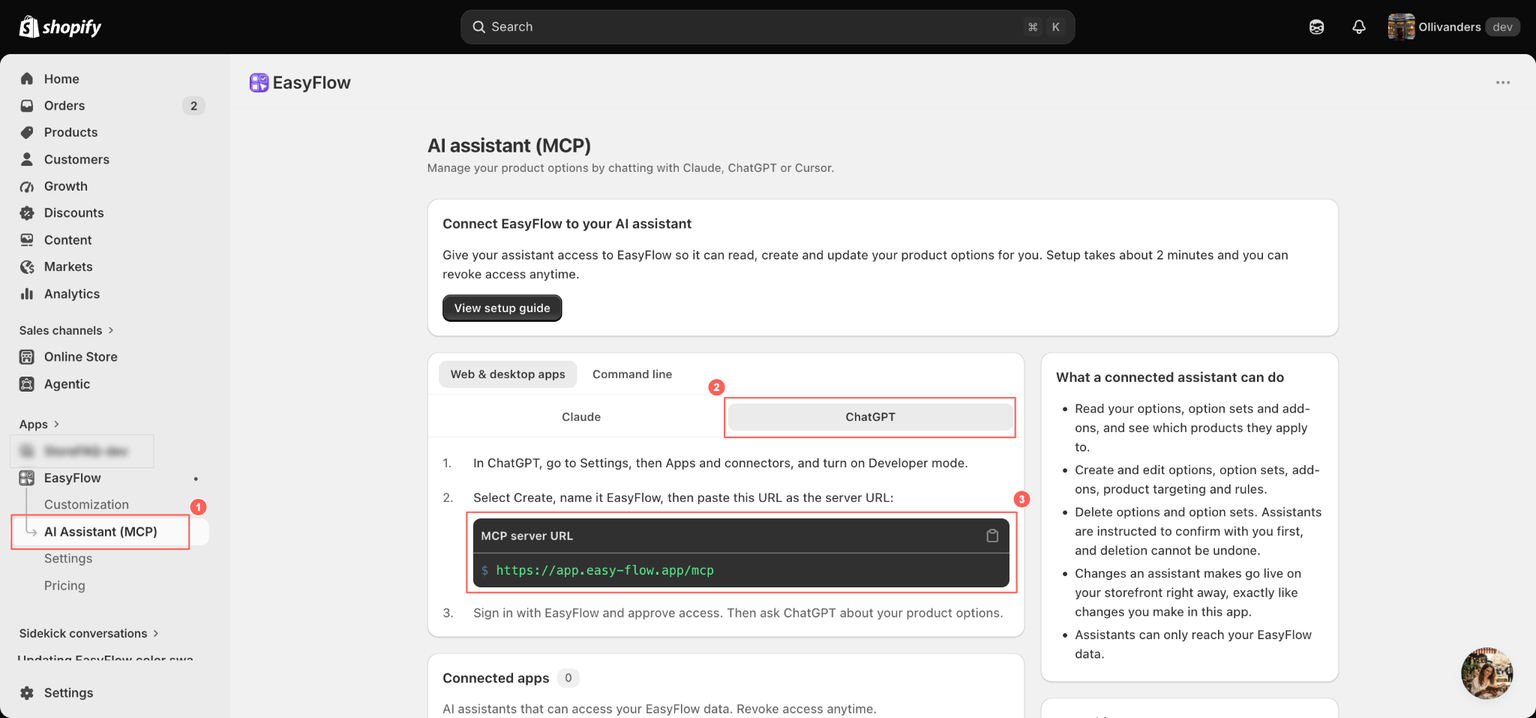
👉 Follow the steps to connect ChatGPT with EasyFlow MCP.
3. Cursor
For developers and technical teams, EasyFlow MCP with Cursor brings product options right into your workspace. It works with a local workspace or one linked to a GitHub repository. You paste a JSON configuration, authenticate in the browser, and the whole toolset appears inside Cursor.
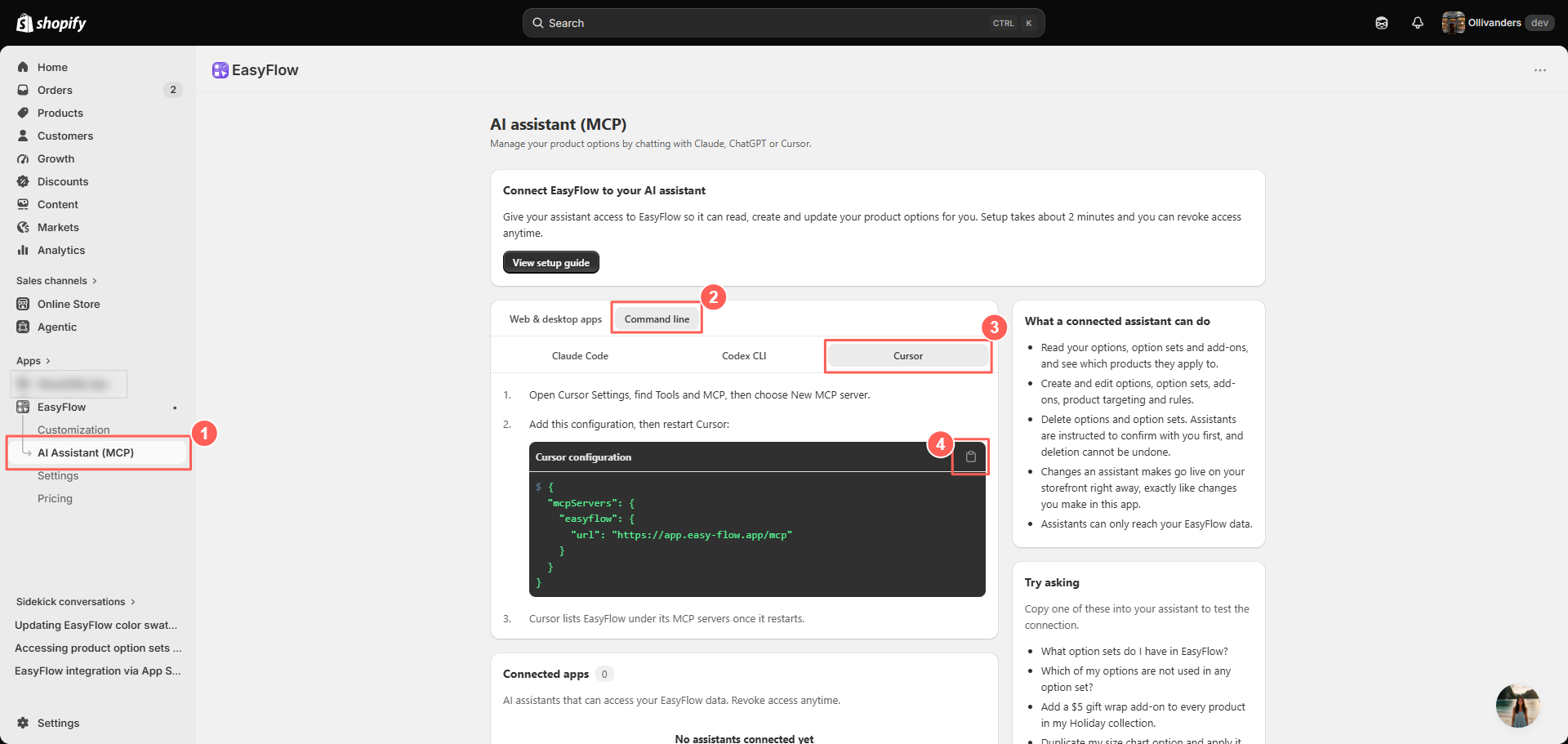
👉 Read the full Cursor MCP for Shopify guide.
4. Codex
If you live in the terminal, EasyFlow MCP with Codex is for you. One command adds the server, one browser sign-in authorizes it, and Codex can then manage your Shopify product customization from the command line.
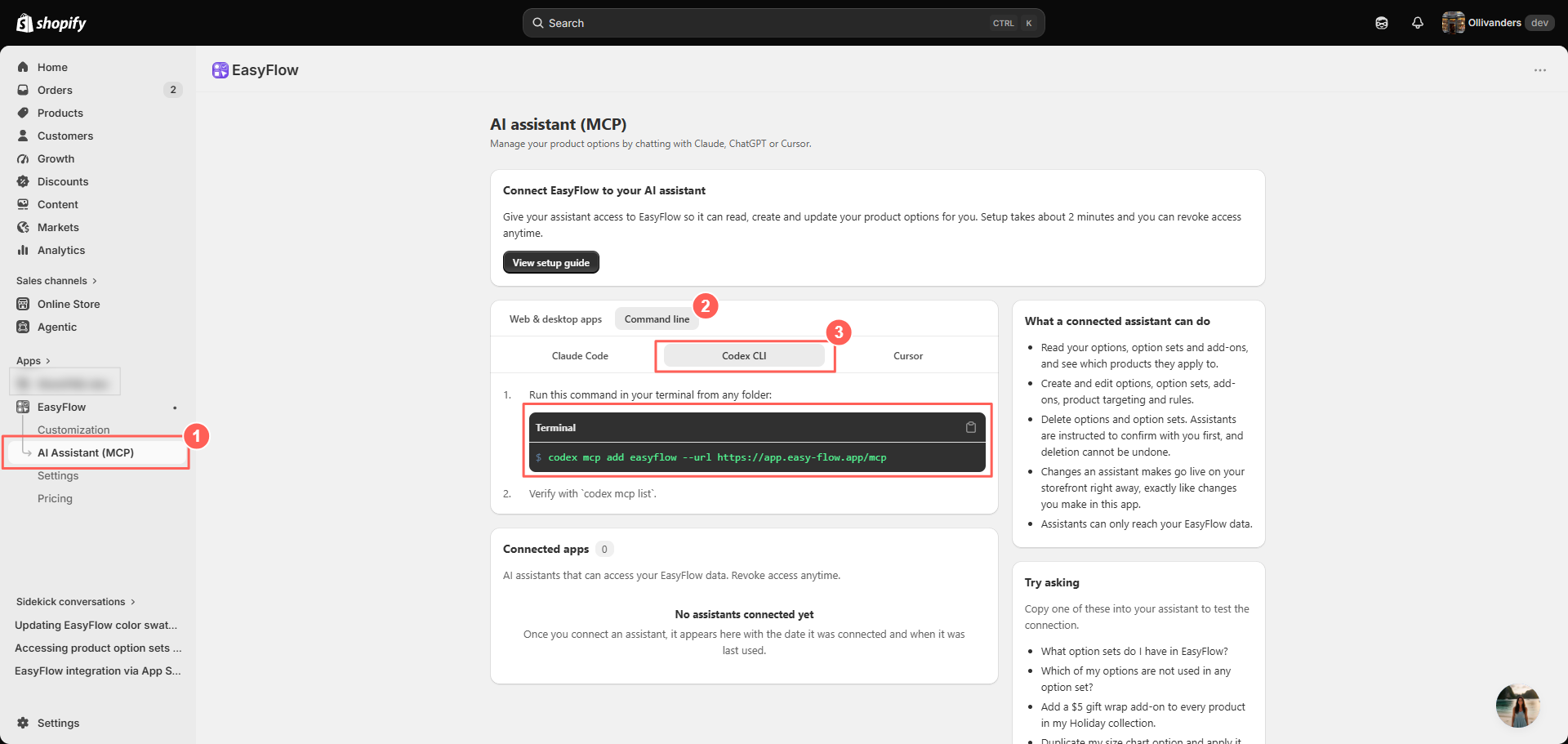
👉 See how to connect EasyFlow MCP with Codex.
5. Claude Code
EasyFlow MCP in Claude Code brings the same power to your terminal with a single command. The server registers at the user level, so it is available across every project on your computer. After a one-time OAuth sign-in, you can search products and build options without leaving Claude Code.
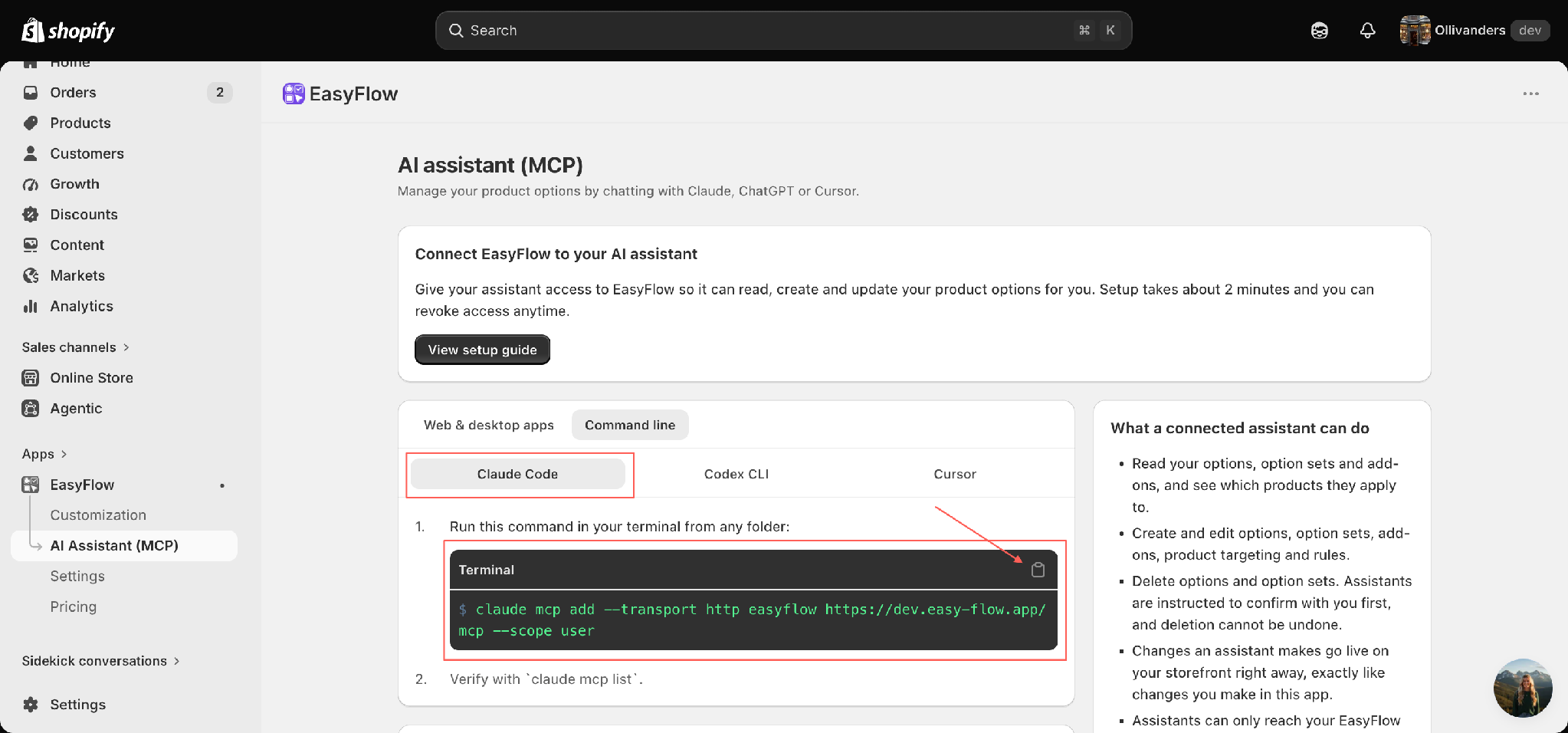
👉 Get started with the Claude Code and EasyFlow MCP guide.
Which AI Assistant Should You Choose?
| AI Assistant | Best For | Setup Method | Skill Level | Where It Runs |
| Claude | Store owners who want the fastest, simplest path | Paste one MCP server URL as a custom connector | Beginner | Claude.ai or desktop app |
| ChatGPT | Merchants who already work in ChatGPT | Create a plugin pointing to your server URL | Beginner | ChatGPT app |
| Cursor | Developers managing options inside their workspace | Paste a JSON configuration | Technical | Cursor (local or GitHub-linked) |
| Codex | Terminal users who prefer command-line control | Run one command to add the server | Technical | Command line |
| Claude Code | Developers who want store access across every project | Run one command (registers at user level) | Technical | Terminal |
Quick pick: If you’re a store owner with no coding background, choose Claude or ChatGPT (both need only a URL and a one-time sign-in).
If you’re a developer or technical team, Cursor, Codex, or Claude Code bring the same toolset into your workflow, with Claude Code standing out for making your store available across every project on your machine.
How to Get Started with EasyFlow MCP
Getting started takes three quick steps. Here’s a complete step-by-step walkthrough.
First, install EasyFlow on your store if you have not already. You can add it from the Shopify App Store, and the installation guide walks you through it.
New to the app? The EasyFlow overview is a good read to begin with.
Second, open your Shopify admin, go to Apps, then EasyFlow, and select AI Assistant (MCP) in the left sidebar. This page holds the server URL and the setup steps for every tool.
Third, pick your AI assistant from the list above and follow its guide. Copy the URL or command, complete the one-time sign-in, and you are ready to build.
Manage Your Store Through A Conversation
EasyFlow MCP changes how you run your product pages. Instead of clicking through the app for every small change, you describe what you want and your AI assistant handles the rest. You still get every EasyFlow feature, from price add-ons and conditional rules to swatches and file uploads, only now the work happens through natural language.
Whether you use Claude, ChatGPT, Cursor, Codex, or Claude Code, the setup is short and the payoff is real. Pick your assistant, follow the guide, and start managing Shopify product options the modern way.
If you found this blog helpful, please subscribe for more expert guides, tutorials, and tips on unlocking the full potential of your Shopify store.
FAQs (Frequently Asked Questions)
What is EasyFlow MCP?
EasyFlow MCP is a connection that links your Shopify product options to AI assistants through the Model Context Protocol. Once connected, you can build and manage options by describing what you want in plain language, instead of clicking through the app.
Which AI assistants work with EasyFlow MCP?
EasyFlow MCP works with five tools: Claude, ChatGPT, Cursor, Codex, and Claude Code. Each one has its own step by step guide, and every guide covers setup, a one-time sign-in, and a real example on a live product.
Do I need coding skills to use it?
No. For Claude and ChatGPT, you copy one server URL and sign in. Cursor, Codex, and Claude Code are aimed at technical users, but they only need one command or one configuration to connect. After that, you work through natural language.
Is it safe to let AI make changes to my store?
Yes. Before any write action, your assistant states exactly what it is about to create, so you can catch a mistake first. It asks again before anything that deletes data, since deletions cannot be undone. Connections use OAuth, and you can control permissions per tool or disable access at any time.
How do I get started with EasyFlow MCP?
First, install EasyFlow on your store. Then open your Shopify admin, go to Apps, select EasyFlow, and open AI Assistant (MCP) in the left sidebar. Copy the server URL or command for your chosen assistant, complete the sign in, and you are ready to build.